
Remote Play on Your Modded PlayStation 4 – Official app and Chiaki-ng
4th January 2026
Is this the best retro gaming handheld? Why I chose the R36S as my portable console.
18th January 2026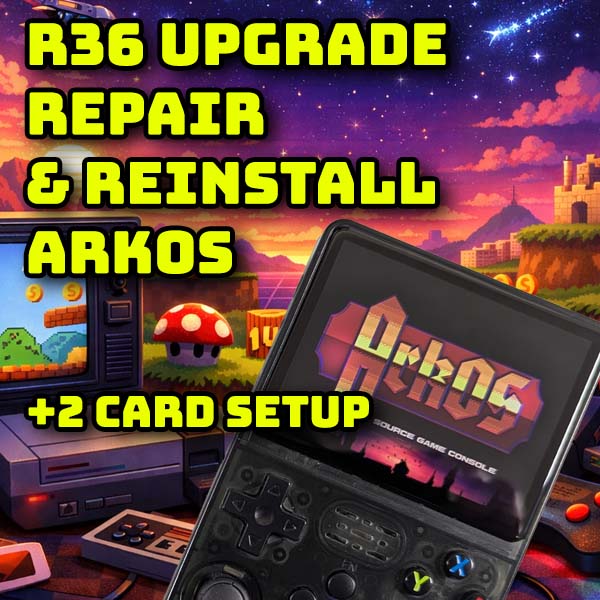
Update, Repair and Replace Your R36S ArkOS card – even if it’s completely dead!
The R36S is a great, budget, retro gaming handheld that lets you have endless fun with all the early consoles right up to the original PlayStation and Nintendo 64. It comes pre loaded with the ArkOS operating system and a whole range of software titles, all for between £30 and £40.
But the supplied SD card can be of poor quality and prone to failing. So one of the first things you should do is replace it with a dual card system using quality SD cards.
In this video I’ll show you how to do this, even if your SD card has already failed and you can’t read any data from it.
So let’s fix your R36!
Why Replace the Card?
First off I’ll explain a bit about what we’re doing.
The standard setup when you buy the console is a single SD card with both the operating system and game files on the same device. Having the operating system on an SD card puts a lot of strain on the memory as it’s being continually read from and written to as the processor runs the games and Linux core. Poor quality cards can’t sustain this level of operation and so parts of the memory circuits fail causing the card to no longer work properly. Files become corrupted and the system either fails to boot or crashes while being used.
Good quality cards are better able to cope with this load, but can eventually fail as well. The main pressure is on the operating system drive, so a great option is to separate your games library from the Linux drive. This means that if your operating system drive fails, or if you need to update the ArkOS installation your game files are safely stored on a separate card. You won’t have to move them when you reflash the OS drive.
Luckily the R36S has two SD card slots for just this sort of setup.
You’ll also find that the shipped version of ArkOS is usually out of date, so an update will give you better performance in some systems and also extra features to make your console better to use.
What You Need
R36 consoles – https://amzn.to/4pKPOdD
16GB card – https://amzn.to/4sEqg4n
128GB card – https://amzn.to/49TC8YW
256GB card – https://amzn.to/4bwrk4e
SD card reader – https://amzn.to/3LBcWx1
So for this setup you’re going to need two good quality SD cards. I tend to use SanDisk cards but any quality brand will do.
For the OS drive a 16GB card is perfect. Any larger will just be wasted space.
For the data drive at least 64GB is recommended, more of you’re going to add lots of extra games to your system. I’m going to be using a 128GB drive so I can get a full Mame arcade setup with all the other consoles as well.
Other than the cards you’ll need a computer to flash the drive images and some way of connecting the micro SD cards to your computer.
Once you’ve got all that ready we’re good to go.
Backup Your SD Card
The SD card that comes with your console has a couple of files which you do need to back up if you can.
So plug the original SD card into your computer. You should find a couple of drives added to your system. One of these will be the Boot partition, the other should be a drive labelled EASYROMS. If the EASYROMS drive doesn’t show up it might be that your computer hasn’t assigned it a drive letter. To do this you’ll need a partition manager app.
On my Windows PC I use Minitools Partition Manager which has a free version that will do the job for us. If I open that up you can see that the SD card is split into 4 partitions which are basically sections of the card that function as separate drives. All you need to do is right click on the EASYROMS partition and assign it a drive letter. This should now appear in your file explorer.
On the Boot partition you’ll find some Device Tree Blob files with r36s in the filenames. These dtb files describe the hardware in your device to the Linux operating system. They are customised to your R36S and there are some variations between manufacturers depending on screen types etc. It can save some trial and error later in the process if we grab the correct files now. Simply copy them somewhere safe on your computer. If you can’t copy these files not to worry. We’ll be using new versions a bit later anyway.
The next step is to get the games off the SD card so we don’t loose them. These are stored on the EASYROMS partition on the card. Using these again saves time. You can find and install all the games yourself but this package gives you a great starting point.
If your original SD has failed you’ll need to download a backup disk image from the Internet Archive. Just search for an R36S backup or iso or image file and you’ll quite easily find one. The easiest method is to look for a game file backup otherwise you’ll have to extract the ROMs from a disk image file using a suitable application. You don’t need the operating system backup as we’ll be installing that from scratch in the next stage.
Installing ArkOS
With all our dtb and games files saved we now need to start rebuilding the main system disk.
The easiest way to update ArkOS is to use the community maintained image at
https://github.com/AeolusUX/ArkOS-R3XS
This repository is run by AeolusUX and aims to improve the overall features and performance of the R36S and variations.
ArkOS itself is no longer under development, but the project has been continued by another developer as dArkOS. This is a bit more tricky to set up so I’ll leave that for another video, but well worth a look.
But to get up and running we need to download the community system disk image. So head over to the latest release page.
On here you’ll find a range of pre made card images for a number of models. I’ll be using the first one in the list for the standard R36S model.
This will download as a disk image file inside an archive. You’ll then need an application such as 7zip or, as I’m using here, Zip Pro to extract the image.
We now need to flash this to our first SD card.
For your system card I’d advise using a good quality 16GB device. To flash the image we’ll use a package called Rufus which is a Windows app. There are other applications but the dev does specify not to use Balena Etcher as they’ve had issues with that. So, head over to
And download the package.
Make sure your SD card is attached to your computer. Open up Rufus and make sure the device selection is pointing at your inserted card. Next click the Select button and select your extracted image file. Once you’re sure you’ll be flashing the correct drive click the Start button and let it run through the flashing process.
Once that’s complete you should find that your computer picks up on the newly created disk drives and you should have a new Boot drive.
First Boot
That’s everything ready to go so eject your SD card from the computer and pop it into the TF1-OS slot on the right side of the console. Make sure the R36S is either fully charged or plugged in. If you have it plugged in you should see the power LED turn red to show the device is charging. Power on and wait.
The screen may flash or just go blank, but your power LED on the front of the console should show a different colour. On mine blue means the console is running. This means that the system is going through its initial setup where it will build the full file structure. As we haven’t yet set up our screen drivers it might look like nothing is happening but just leave it running for about 10 minutes to make sure everything has completed.
If you’re unsure about this stage you can copy your backed up dtb files to the root of the Boot drive and your screen should work from the first boot, but the dtb files we’ll be using in a while can be more up to date so I would advise just letting it run through this setup with the community image drivers.
Identifying Your Screen
While you’re waiting for the system to initialise we can use your backed up dtb files to identify the LCD panel type on your R36.
On the community ArkOS GitHub page scroll down to the bottom of the Panel Picker section. There you’ll find a link to the panel identifier tool at
https://aeolusux.github.io/ArkOS-R3XS/tools/dtbIdentify.htm
For this you will need your backed up r36s dtb file. Click on the Choose File button, select your file and then click the Identify My Screen button. The tool should then report back on which LCD panel type you have. We’ll need this info in the next stage. As you can see on screen my panel is an original one.
If you haven’t got your original dtb file you’ll just have to use trial and error.
Selecting the Screen
After 10 minutes you may or may not have anything showing on the R36, but just power off by holding in the power button.
We’re now going to set the correct LCD panel driver.
On the GitHub page go to the section for Entering the Panel Picker Mode.
This allows us to tell the R36S which software to use. If you’ve identified your screen use that option. If not you’ll need to try each option in turn. I’d start with the original then the others.
With the console powered off hold in the R1 button on the back and one of the panel option buttons as shown on the GitHub page. I’ll try Panel 1 to start with to show you a fail.
Now power on the console and keep the R1 and option button held in.
The screen may do something, but just wait until it powers off.
Now power the R36 on again, not holding in any buttons, and see what happens. If you get a blank or other bad display we’ve set the wrong panel type so power off the console.
I’ll now repeat the process for the original panel which is the A button. Again I power on while holding the R1 and A buttons and then wait for it to power off. Now when I power on I should get an ArkOS splash screen and the console should start up and drop into the main interface.
If you find none of this works for you, you can download the dtb files from this web page.
https://github.com/AeolusUX/R36S-DTB
Again if you don’t know what panel you have you’ll just have to try each until your find one that works.
But hopefully you’ll now have your R36S up and running on the latest ArkOS community version.
Setting Up SD Card 2
At the moment we’ve got both our OS and game ROMs running from a single SD card. As yet we haven’t added the game files but the system has set itself up in single card mode.
You now need to insert your blank games SD card into the left card slot. Don’t copy any game files yet as ArkOS needs to set the card up for us.
On the console go to the Options section and then Advanced. Now scroll down to the very bottom until you find the Switch to SD2 for Games option. Select that and you’ll see the console go through setting up your blank SD card as the main games drive. Just wait until it finishes.
Now use the Start button to pull up the main menu and Quit and shutdown.
You now need to take out the games SD card and attach it to your computer.
You should find it attaches as a new drive called EASYROMS. If not you’ll need to go through the process of assigning it a drive letter as before.
All you need to do now is copy over your backed up game files.
If you want to add any more games now is a great time to do that as well.
Once those are all copied over eject your SD card and pop it back into the R36.
Once you power on your console should rescan the drive for the games so let it run through that process and then you’re all set for some retro enjoyment.