Windows 95 gaming with eXoWin9x – Play over 600 games
21st January 2026
Wii U Homebrew App Store – find and install apps the easy way
31st January 2026
Hack your WiiU and play all the WiiU, Wii and GameCube games – 2026 edition
Modding your WiiU allows you to play all the WiiU, Wii and GameCube games from your disk backup files. Everything runs at full speed using using the original hardware to give you the best gaming experience. Plus you can then go on to emulate a whole range of older retro consoles and use some great homebrew applications to get the most from your WiiU console.
The Wii U Hack Guide gives you loads of information about the hacking process, but the best way to complete the task is to use ModMii.
ModMii – https://modmii.github.io/
WiiU Hack Guide – https://wiiu.hacks.guide/
ModMii is a Windows application that does all the hard work of assembling your homebrew files, making sure they are all correctly formatted and stored and then provides you with a step by step guide on what to do. As it’s created by someone who really knows Wii U Modding it goes beyond the basic hack to provide you with a range of useful extras and tools.
To hack your WiiU you’ll need some parts.
WiiU – https://amzn.to/46dHv31
SSD – https://amzn.to/4k86yKv
Micro SD card with adapter – https://amzn.to/3M2IDj1
USB splitter cable – https://amzn.to/4a5FQOe
Wiimote – https://amzn.to/4k7yRsF
Sample ModMii Wizard Guide
ModMii for Windows
by XFlak

This software is not for sale. If you paid for this software or a “bundle” you have been scammed.
THIS PACKAGE COMES WITH ABSOLUTELY NO WARRANTY, NEITHER STATED NOR IMPLIED.
NO ONE BUT YOURSELF IS TO BE HELD RESPONSIBLE FOR ANY DAMAGE THIS MAY CAUSE TO YOUR NINTENDO WII CONSOLE!
USE THIS AT YOUR OWN RISK!
- Your chosen options
-
- This guide was generated using the following parameters:
-
-
- Install and\or update all recommended WiiU and vWii softmods
- System Menu Region is E
- Download USB-Loader GX
- USB-Loader Settings and config files saved to USB Hard Drive
-
-
-
- This guide requires an internet connection on your console and an SD Card. Note that without internet you can still softmod vWii Only using an SD Card and one of six supported Wii games\discs with exploits.
- A USB Hard Drive can later be used to store game backups, Virtual Console injects, etc, but not to store WiiU homebrew applications which are required to set everything up.
- Check if your SD Card has a lock switch and make sure it’s disabled.
- If you get errors during any of the steps try reformatting your SD Card as FAT32.
- If your console ever freezes, hold the power button for 5 seconds to power it off then try again.
- During the modding process if you are prompted for your Nintendo Network ID to launch a channel or app you can select the back arrow button then “Start” to start the software anyway.
- If you brick your vWii for any reason you should be able to recover using vWii Decaffeinator or vWii NAND Restorer so long as the WiiU menu remains operational; however, vWii NAND Restorer currently requires switching from Aroma to a legacy environment like Tiramisu. Some actions to avoid that may cause brick are listed below:
- Never uninstall a System Menu or IOS.
- Installing a custom System Menu for vWii is a brick risk and you should always have a NAND backup before installing one; however, when done right it will not brick the vWii. vWii themes are experimental and not every MYM\theme will work properly.
- Replacing any IOS (including TED IOSes) or WADs made for the original Wii on your vWii may semi-brick it. WiiWare wads are fine, but some need to be converted to work.
- When updating your softmod you should always overwrite old mods by installing new ones, do not try to “Delete everything” or “Start from scratch”.
- To update your mods in the future you can use the ModMii Wizard as if it was your first time, or even better, update only your outdated WiiU mods using ModMii’s File Checkup feature and\or update your vWii mods using ModMii’s SysCheck Updater Wizard!
- If you accept an official Nintendo update after modding, you may lose some of your modifications and have to reinstall them.
- It’s probably unnecessary, but you should disconnect all peripherals from the console during the modding procedure unless instructed otherwise.
- If connecting a portable hard drive to your WiiU, a Y-cable may be needed for it to draw power from two usb ports.
- The WiiU and vWii cannot use the same USB hard drive; however a single SD Card can be used for both.
- A WiiU Formatted USB hard drive is a hard drive that has been formatted by a WiiU console to its proprietary format. A WiiU formatted USB drive cannot be read by any device other than the WiiU that originally formatted it. If you ever want to use it with another WiiU console or any other devices, you will have to reformat it.
- The vWii cannot use a WiiU Formatted USB hard drive. It is recommended that USB Hard drives intended for use on the vWii be formatted as FAT32.
- If a non-WiiU Formatted USB hard drive is detected while in the WiiU menu you will be prompted to format\erase it. Careful not to accidentally format your vWii Hard Drive (if applicable). The After Modding section of this guide will direct you on how to optionally disable the format prompt.
- USB hard drives configured to work on a vWii will also work on Wii and Wii Mini and vice versa.
- Double check that your hard drive is always plugged into USB port0 – the one on the back furthest from the edge of the WiiU.
- After completing this guide, you can launch your USB-Loader via the Homebrew Channel or a USB-Loader forwarder channel.
- USB-Loaders, contrary to their name, can also be used on the Wii\vWii with an SD Card. If you prefer using an SD Card simply follow this guide utilizing your FAT32 formatted SD Card in place of a Hard Drive.
- Not all external hard drive’s are compatible with the Wii\vWii\Wii Mini, small USB flash drives or ‘thumb drives’ in particular often don’t work very well. For a list of which USB hard drive’s are compatible, check out the USB Devices Compatibility List
- If you are determined to try using a small USB flash drive or ‘thumb drive’ on a Wii\vWii, you may have more success if running the loader off of an SD Card and formatting the flash drive as WBFS instead of FAT32. This can be done using Wii Backup Manager. However, doing so will not only restrict the drive to storing only Wii games, but it will not be accessible by your PC without a program like Wii Backup Manager. In fact, every time you plug the hard drive into your PC you will be prompted to reformat it.
- If a USB Loader fails to load a particular game, try changing it’s game specific settings to use a different custom IOS like 249, 250, 251, etc. Your cIOS 249 should play the vast majority of games, for more information see the Wii cIOS base Compatibility List.
- Detailed guides covering a broad range of related topics available at the Complete Softmod Guide, wii.hacks.guide and wiiu.hacks.guide
- If you come across a term or abbreviation that you’re not familar with you can reference the WiiBrew Glossary or the CSG Glossary
- If you need help, have questions, or just want to chat visit the official ModMii page on gbatemp or the ModMii Discord Server and ask away!
- This guide requires an internet connection on your console and an SD Card. Note that without internet you can still softmod vWii Only using an SD Card and one of six supported Wii games\discs with exploits.
-
- Before Starting
-
-
- If you have an existing legacy Custom Firmware (CFW) setup, uninstall it before proceeding. Choose which legacy CFW to uninstall using the buttons below.
-
For Tiramisu users: While safe to follow this guide, to install Aroma next to Tiramisu (or vice versa) you only need to add it to your SD card and change the default boot setting in the Environment Loader as described below.
- If autobooting into Tiramisu, hold X while the console is booting to launch the Environment Loader.
- If not autobooting into Tiramisu, launch the Health & Safety Application while holding X to launch the Environment Loader.
- Clear Tiramisu as the default environment by pressing X.
- Using the D-Pad, navigate to aroma and press Y to set this to your default environment, then press A to launch into Aroma.
- If you see a yellow warning that the update folder exists and updates are not being blocked properly, press X to block updates.
- If you did not see a yellow warning, but the AutobootMenu says “Updates not blocked!”, press START (+) and SELECT (-) at the same time until it says they are blocked.
- Should you wish to unblock updates in the future follow these steps.
- On the Aroma Boot Selector, the Wii U Menu should already be selected, press Y to set this to your default autobooting option (or choose your preferred title to autoboot), then press A to launch it.
- Once you boot into the WiiU Menu, if you see apps on your home screen you have successfully switched to Aroma.
- Although Tiramisu is outdated, you don’t need to delete it. If you still decide to use Tiramisu in the future, for legacy homebrew purposes, just launch the EnvironmentLoader again to select it.
- Set SD Card Partition Style to MBR (if applicable)
-
-
- Partition style\format information for devices that were connected when this guide was created has been saved to the spoiler below.
-
-
-
-
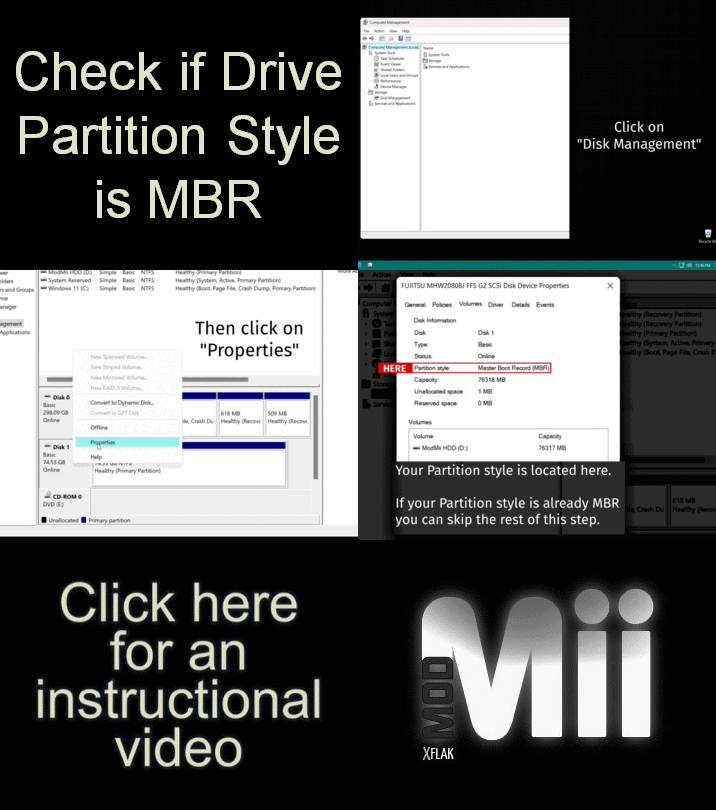
- First, plug your SD Card into your PC and check if it’s Partition style is already MBR.
-
-
-
-
-
-
- Right-click “This PC” or “My Computer” and select “Manage”, a new window will open, on left panel click “Disk Management”.
- If “This PC” or “My Computer” is not on the desktop it can be accessed using the ⊞ Win+E keyboard combination.
- In the Disk Management window, right-click the disk you want and select “Properties”.
- In the disk’s properties window, select the “Volumes” tab.
- If the “Partition style” is already Master Boot Record (MBR), you can skip the rest of this step.
- Right-click “This PC” or “My Computer” and select “Manage”, a new window will open, on left panel click “Disk Management”.
-
-
-
-
-
-
- If your SD Card is not already MBR you must convert it using any one of the methods below.
-
-
Method 1: MiniTool Partition Wizard
- If you have files on the SD Card you want to keep, you can convert the Partition style to MBR without losing data using MiniTool Partition Wizard.
- Even though your data should be preserved, there are no guarantees and you should still back up your files.
- If your SD Card is not already in the desired format (e.g. FAT32) you will have to format it during the next step anyway so there’s no point in using this method.
-
- Download MiniTool Partition Wizard, install it and start the program.
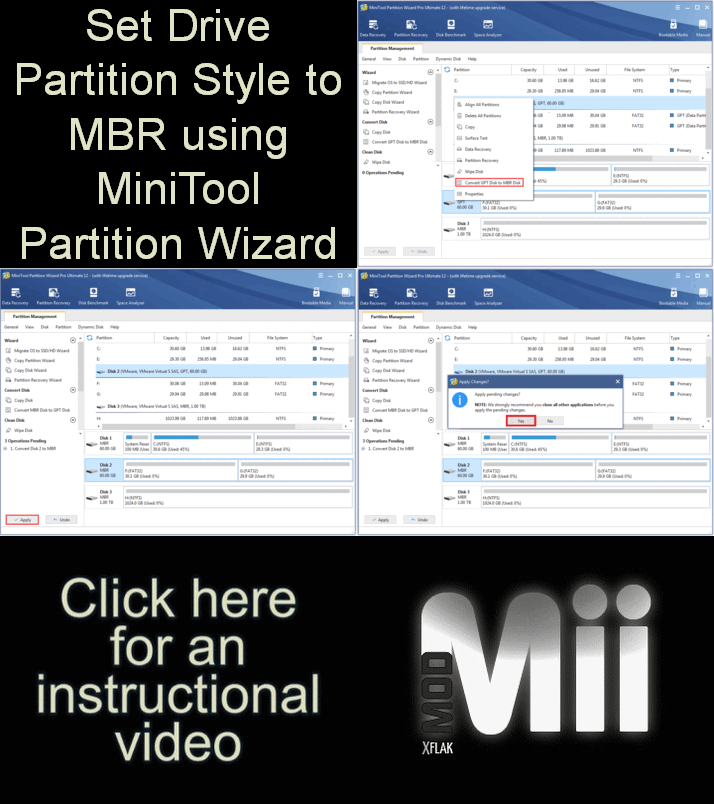
- Within the MiniTool window, right-click the GPT disk you want to convert and choose “Convert GPT Disk to MBR Disk”.
- Click the “Apply” button in the toolbar.
- Click the “Yes” button to confirm conversion.
- Wait for the conversion to finish then click “OK”.
- Once you have successfully converted your SD Card to MBR you can proceed to the next step of this guide.
- Format the SD Card as FAT32 (if applicable)
-
-
-
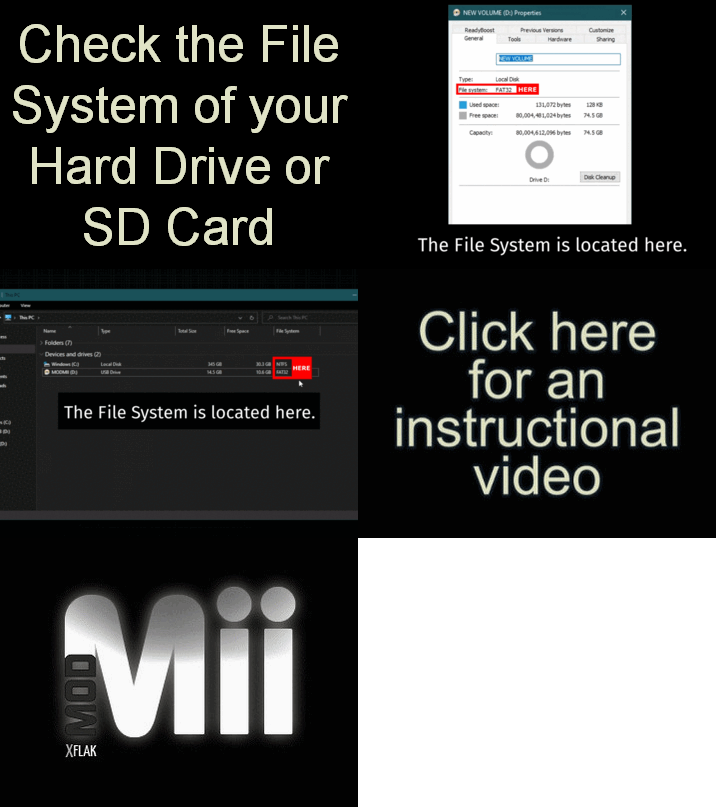
- First, insert your SD Card into your PC and determine if it needs to be formatted by checking the current Format\File-System of the SD Card.
-
-
-
-
-
-
- Open “This PC” or “My Computer”, right-click the SD Card you want to use, then select “Properties”.
- If “This PC” or “My Computer” is not on the desktop it can be accessed using the ⊞ Win+E keyboard combination.
- Make note of the Drive Letter of the SD Card as this will be important later.
- If the “File-System” is already FAT32, you can skip this step.
- Open “This PC” or “My Computer”, right-click the SD Card you want to use, then select “Properties”.
-
-
-
-
-
-
- If you have anything saved to the SD Card, you should back it up now as all the data will be lost once you format it.
-
-
-
-
-
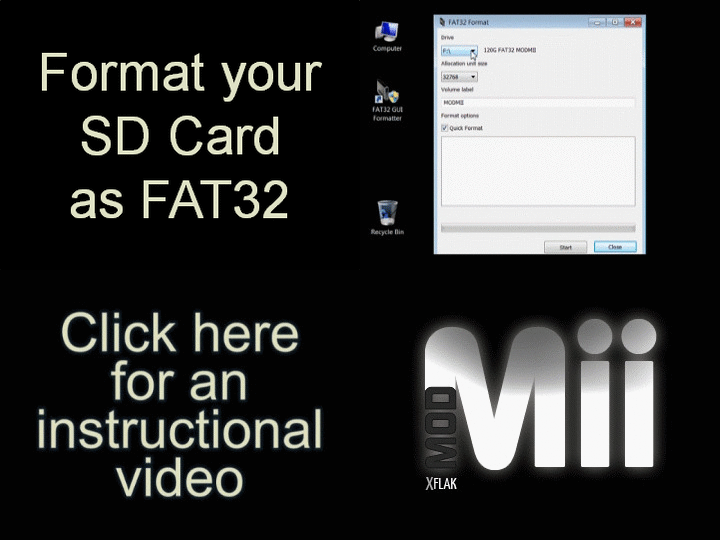
- Launch FAT32 GUI Formatter from shortcuts on your Start Menu or Desktop or directly from C:\ModMii\Program Files
-
-
-
-
-
-
- Carefully select the correct drive letter corresponding to your SD Card.
- You may optionally uncheck the “Quick Format” box, then click “Start”.
- When completed it should display “Done”.
- If you get an error indicating the device is in use, try again after first closing all of your file explorer windows, even the ones that weren’t browsing the device.
- Click the “Close” button.
-
-
-
-
-
-
- Copy the files ModMii downloaded to your SD Card.
- The files should be saved here: “C:\ModMii\COPY_TO_SD”• Your folder structure should look similar to this:
💾 SD Card
┗ 📁apps
┣ 📁AppName1
┣ 📄boot.dol
┣ 📄meta.xml
┗ 📄icon.png
┣ (All other Wii apps should be here too)
┗ 📂wiiu
┣ 📂apps
┃ ┣ 📂AromaUpdater
┃ ┃ ┗📜AromaUpdater.wuhb
┃ ┣ 📜PayloadLoaderInstaller.wuhb
┃ ┗ (All other WiiU apps should be here too)
┣ 📂environments
┃ ┗ 📂aroma
┃ ┣ 📂modules
┃ ┃ ┣ 📂setup
┃ ┃ ┃ ┣ 📜00_mocha.rpx
┃ ┃ ┃ ┣ 📜10_wums_loader.rpx
┃ ┃ ┃ ┗ 📜99_autoboot.rpx
┃ ┃ ┗ (All other Aroma modules ending with .wms should be here too)
┃ ┣ 📂plugins
┃ ┃ ┣ 📜AromaBasePlugin.wps
┃ ┃ ┣ 📜drc_region_free.wps
┃ ┃ ┣ 📜homebrew_on_menu.wps
┃ ┃ ┣ 📜regionfree.wps
┃ ┃ ┗ (All other Aroma plugins ending with .wps should be here too)
┃ ┗ 📜root.rpx
┣ 📂payloads
┃ ┣ 📂default
┃ ┃ ┗ 📜payload.elf
┃ ┗ 📂nanddumper
┃ ┗ 📜payload.elf
┣ 📜payload.rpx
┗ 📜payload.elf• Your folder structure should not look like this:
💾 SD Card
┗ ⛔📁COPY_TO_SD - When the files are finished copying to the SD card, you should safely remove your SD Card from your computer and reinsert it into your console and proceed to the next step.
- The files should be saved here: “C:\ModMii\COPY_TO_SD”• Your folder structure should look similar to this:
- Copy the files ModMii downloaded to your SD Card.
-
-
- Make a NAND backup
Browser Exploit to launch nanddumper
-
-
- Requirements: an internet connection on your WiiU and an SD card.
-
The Browser Exploit is a WiiU entry point which allow further homebrew to be run. All current WiiU exploits load SD:/wiiu/payload.elf which takes over further loading of homebrew. Creating a NAND backup is similar to creating a system restore point in Windows. Should you ever brick your console, restoring a NAND backup is like taking it back in time to before the problem occurred. Restoring a full WiiU NAND Backup requires additional hardware and micro soldering skills. However, making a NAND Backup is always useful, so please do not skip it. NAND backups are console specific, so you cannot restore a backup from a different console. vWii NAND Backups (slccmpt.bin/nand.bin & keys.bin/otp.bin) can be restored without additional hardware using vWii NAND Restorer but it currently requires switching from Aroma to a legacy environment like Tiramisu. Generally, vWii NAND Restorer should only be used if vWii Decaffeinator fails to repair a brick.
-
-
-
- Make sure your WiiU has internet access for this step.
- Launch the Internet Browser and navigate to this website: wiiuexploit.xyz
- Click on Run Exploit! and hold the B button until you see a screen that says “Please choose your payload:”
- If your WiiU gets stuck on a white or otherwise frozen screen, wait a few seconds. If nothing happens, reboot the console, reset your browser save data and try again.
- If you see the Environment Loader, you did not hold down B long enough. Try again.
- If you get any errors like FSOpenfile failed, FSGetMountSorce failed, or SD Mount failed, refer to the Common Issues & Fixes section of the WiiU Hacks Guide.
- Navigate to nanddumper using the GamePad and press A to launch it.
-
-
nanddumper Steps
-
-
-
- Use the WiiU GamePad’s D-Pad to enter the following configuration:
- Dump SLC: yes
- Dump SLCCMPT: yes
- Dump MLC: optional
- Dump OTP: yes
- Dump SEEPROM: yes
- To create a full NAND backup your SD Card has to be larger than the size of your NAND (either 8GB or 32GB depending on your model). If you do not have a large enough SD Card, you can skip the optional MLC section which includes save files and game data and is not needed to recover from most types of bricks.
- Press the A button to start the dumping process.
- Do not power off your console or remove your SD card when making your NAND backup.
- When the process is finished, or immediately following the completion of this guide, power off your WiiU, take your SD Card out of the console and plug it into your PC. Copy slc.bin, slccmpt.bin, seeprom.bin, otp.bin and, if you chose to go with a full backup, all the mlc.bin.part files to your computer, a hard drive, the cloud or anywhere safe. You might need these in case of emergencies, so don’t lose them. Optionally erase them from the SD card after backing them up to free up space. When done, safely remove your SD Card from your computer and reinsert it into your console and proceed to the next step.
- Use the WiiU GamePad’s D-Pad to enter the following configuration:
-
-
Fun Fact! You can extract the contents of your slccmpt.bin by opening it with ModMii, then save it to a hard drive or SD Card to act as a vWii Emulated NAND (or virtual NAND), allowing you switch between the vWii’s real NAND and one or more Emulated NANDs. Emulated NANDs can provide much more storage space than the vWii’s internal memory.
- Install Payload-Loader
Installing the Payload-Loader will let you access Aroma just by running the Health and Safety Information app.
Browser Exploit to launch Environment Loader & Aroma
-
-
- Requirements: an internet connection on your WiiU and an SD card.
-
An environment is a collection of “setup modules”, which will be run in a certain order when launched. Examples of WiiU environments are Aroma and Tiramisu. Setup modules are small pieces of homebrew/code that are executed once to set up an environment.
-
-
-
- If you are already in the Environment Loader menu skip ahead to Step E.
- Make sure your WiiU has internet access for this step.
- Launch the Internet Browser and navigate to this website: wiiuexploit.xyz
- Click on Run Exploit! and this time hold the X button until you see the Environment Loader menu.
- If your WiiU gets stuck on a white or otherwise frozen screen, wait a few seconds. If nothing happens, reboot the console, reset the browser’s save data and try again.
- If you do not see the Environment Loader menu, you did not hold down X long enough. Try again.
- If you get any errors like FSOpenfile failed, FSGetMountSorce failed, or SD Mount failed, refer to the Common Issues & Fixes section of the WiiU Hacks Guide.
- Using the D-Pad, navigate to aroma and press Y to set this to your default environment, then press A to launch into Aroma.
- If you see a yellow warning that the update folder exists and updates are not being blocked properly, press X to block updates.
- If you did not see a yellow warning, but the AutobootMenu says “Updates not blocked!”, press START (+) and SELECT (-) at the same time until it says they are blocked.
- Should you wish to unblock updates in the future follow these steps.
- On the Aroma Boot Selector, the Wii U Menu should already be selected, press Y to set this to your default autobooting option (or choose your preferred title to autoboot), then press A to launch it.
-
-
Payload-Loader Installer Steps
-
-
-
- Launch the newly appeared Payload-Loader Installer channel from the WiiU Menu.
- Press the A button to check if you can install the Payload-Loader.
- It should now tell you that the Payload-Loader can be installed onto the Health and Safety Information app.
- Press the A button to select Install / Update.
- You’ll be asked if you are sure you want to install the Payload-Loader. Use the D-Pad to select Install and press A.
- After installing has finished, press A to shut down the console.
-
-
-
-
-
- Now when the Health and Safety Information app is launched, it will load the Payload-Loader, which loads the Aroma environment, which finally loads the WiiU Menu.
- To open the Environment Loader in the future, you have to hold X while the console is loading the Health and Safety Information app.
- To open the Aroma Boot Selector in the future, you have to hold START (+) while the console is loading the Health and Safety Information app.
- Now when the Health and Safety Information app is launched, it will load the Payload-Loader, which loads the Aroma environment, which finally loads the WiiU Menu.
-
-
- Autoboot Aroma (Optional)
Currently, every time you want to launch Aroma you will have to launch the Health and Safety information app.
If you wish to automatically launch into Aroma on every boot complete this step.
If you do not want to autoboot Aroma you can skip this step.
-
-
-
- Launch the Payload-Loader Installer from the WiiU Menu.
- Press A to select Check.
- Select Boot options.
- You will be asked if you want to switch the boot title. Press A to select Switch to Payload-Loader.
- When the process is finished, press A to shutdown the console.
-
-
-
-
-
- The Payload-Loader will now be launched automatically on every boot, which loads the Aroma environment, which loads the WiiU Menu.
- To open the Environment Loader in the future, you have to hold X while the console is booting or loading the Health and Safety Information app.
- To open the Aroma Boot Selector in the future, you have to hold START (+) while the console is booting or loading the Health and Safety Information app.
- The Payload-Loader will now be launched automatically on every boot, which loads the Aroma environment, which loads the WiiU Menu.
-
-
- Configure Pretendo (Optional)
Pretendo is a replacement service for the Nintendo Network, which brings back online services (including Miiverse) as they have been discontinued by Nintendo.
-
-
- CAUTION: A Pretendo Network ID (PNID) may not use the same username as an account already linked to your WiiU. If you have an account with a Nintendo Network ID (NNID) on your WiiU which shares the username you wish to use, it MUST first be removed or unlinked. Before removing accounts you may want to backup and transfer save data to a new account following the steps in the spoiler below. However, to entirely avoid removing accounts that conflict with Pretendo they can instead be
-
-
-
- from Network IDs by simply launching
-
-
-
- from the WiiU Menu to unlink the Network ID, effectively turning it into a local user account capable of being linked to a new PNID.
-
-
-
-
- Access the Aroma plugin menu by pressing L + Down + SELECT (-) on the WiiU GamePad.
- Choose the “Inkay” plugin, navigate to “BOSS settings” and press A, then press A on “Unregister Wara Wara Plaza BOSS tasks” and restart your console.
-
-
ModMii has already installed Pretendo (i.e. Inkay) to your SD Card; however to use it you still must register a Pretendo Network ID (PNID). There are currently two ways of creating a PNID: Creating an account with the website and linking it, or creating it on your WiiU. You do not need to complete both methods.
PNID Setup Method 1: WiiU
-
-
-
- Create the Pretendo Network ID as you would a Nintendo Network ID following these steps.
-
-
PNID Setup Method 2: Website
Warning: this method currently will not allow you to choose your region (defaults to US), potentially creating a region mismatch which disables the vWii EULA and breaks WC24.
-
-
-
- Register an account from here and click Don't have an account? to register.
- Once your account is registered, link it to your console as you would a Nintendo Network ID following these steps.
-
-
- Install The Homebrew Channel (HBC) for vWii
The vWii Compat Installer is a WiiU app that installs the Homebrew Channel to vWii. It requires an SD, SDHC or SDXC card.
The Homebrew Channel allows you to launch Wii\vWii homebrew applications off your SD card or Hard Drive.
-
-
-
- If not autobooting into Aroma, launch it via the Health & Safety Application.
- Launch the vWii Compat Installer from the WiiU Menu.
- Press A to install the HBC and wait until you see Install succeeded.
- Press the HOME button to return to the WiiU Menu.
- It is not uncommon to experience a harmless freeze at this time. If this happens simply hold the Power button on the console, restart, and continue with the next step.
- Launch vWii (the Wii Menu icon) from the WiiU Menu.
- If the installation was successful you should see the HBC in your vWii Menu.
- Launch the HBC from the vWii Menu.
-
-
- Install and Configure Priiloader
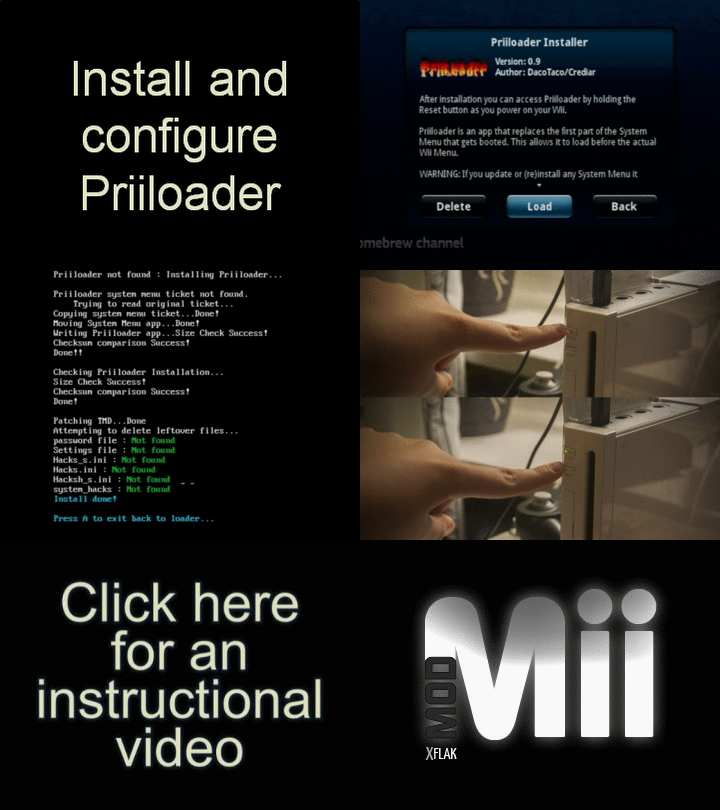
Priiloader loads just before the vWii System Menu and is invisible unless you hold down the ESC key on a USB connected keyboard while launching the vWii system menu. Not only is Priiloader a great form of brick protection, it can be customized to automatically boot straight to the System Menu (default behavior) with patched features (aka “System Menu Hacks”), or directly to the HBC or a user defined homebrew (e.g. a USB-Loader, Crazy Intro Videos, etc). Click here for directions on “Installing a file” (aka “dol” or “elf” file) in Priiloader to launch user defined homebrew. Custom forwarder dols that are compatible with Priiloader can be built from ModMii’s Advanced Downloads menu. More Priiloader information can be found in its FAQ.
-
-
-
- You can navigate the Priiloader menu using a Wiimote, GameCube controller, or USB Keyboard.
-
-
-
-
-
- Launch the “Priiloader Installer” from the Homebrew Channel.
- After the Priiloader Installer loads, press + to install it.
- When successful the installer should display “Install done!”
- Press A to exit back to the Homebrew Channel.
- Launch the “Load Priiloader” app via the HBC to access the Priiloader menu.
- You can also access Priiloader by holding down the ESC key on a USB connected keyboard while launching the vWii system menu, or by downloading the “Priiloader Wii U Forwarder tool“, saving it to your SD Card and running it directly from the WiiU Menu.
- From the Priiloader menu, select “System Menu Hacks” and enable some system menu hacks.
- Be careful not to haphazardly enable just any hack, for example do not enable “Lock System Menu with Black Screen”.
- Click here for a description of each Priiloader system menu hack.
RECOMMENDED HACKS
- Block Online Updates
- Region Free EVERYTHING
- Remove Deflicker (only if you are NOT using a CRT display)
- Wiimmfi Patch v4
- Remove NoCopy Save File Protection
- Wii System Settings via Options Button
- Create message via Calendar button (only needed if using WC24 services like WiiLink)
- Permanent vWii System Settings
- Make sure to read about it here before enabling.
- Fix NWC24iSetUniversalTime (only needed if using WC24 services like WiiLink)
- To enable this hack it you must first generate it and paste it at the end of your \apps\priiloader\hacks_hash.ini file. Remember to generate two hacks if your country observes daylight saving time.
- Scroll down to “save settings” and press A, then press B to go back to Priiloader’s main menu.
- Optional: Autoboot a USB-Loader Channel instead of the System Menu.
- Select “Load/Install File”. Select your forwarder dol (e.g. USBLoader_IDCL_Channel_Forwarder.dol) and press A to install it. Wait for it to install and return to the main menu.
- Did you know that custom forwarder dols can be built from ModMii’s Advanced Downloads menu?
- Navigate to “Settings” and change “Autoboot” to “Installed File”.
- Select “Load/Install File”. Select your forwarder dol (e.g. USBLoader_IDCL_Channel_Forwarder.dol) and press A to install it. Wait for it to install and return to the main menu.
- Navigate to “Homebrew Channel” and press A to launch it.
-
-
Pro tip! If you update or (re)install any System Menu it generally REMOVES Priiloader and you should reinstall it immediately to stay protected. Only YAWM ModMii Edition allows you to safely retain Priiloader while (re)installing a System Menu.
- Install WADs
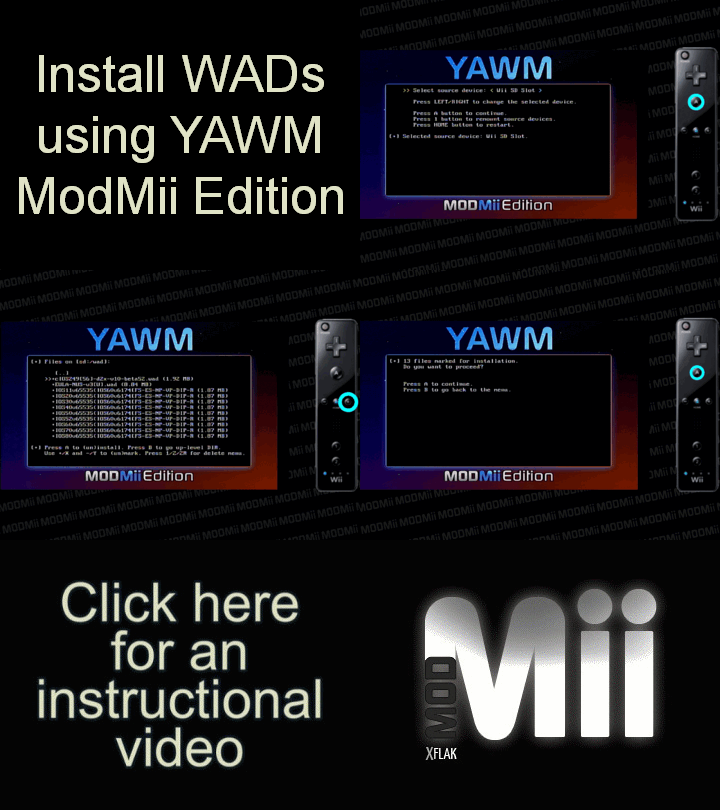
YAWM ModMii Edition stands for Yet Another Wad Manager ModMii Edition (aka yawmME). A WAD Manager will allow you to install “WADs” containing things like updates and other content for your console, like IOSs, custom IOSs (or cIOSs), or other downloadable content, which can be all packed into WADs and installed to your console. Think of a WAD like a zip file but for the Wii.
-
-
- WARNINGS: Do not unplug the console when installing WADs. WADs can also be
-
un
-
-
- installed, and if you’re not careful you can brick your console by uninstalling or even installing the wrong WAD. The WAD Manager you’re using, YAWM ModMii Edition, has some extra brick protection built in to restrict someone from doing catastrophic things like uninstalling any System Menu WAD, or required System Menu IOS, or a dozen other things which could potentially result in a brick if you don’t know what you’re doing. Stick to your ModMii guide and you’ll be fine.
-
Fun Fact! I mentioned IOSs and cIOSs before, “the Wii console uses the ‘IOS’ system to communicate with the hardware, it’s like a driver (compared to Windows). It contains information and communication tools (like how to access the Disc drive, how to access USB, read the savegames data stored on internal memory, etc.)” ~Cyan. If you’re curious to learn more about IOSs or cIOSs, a thorough explanation can be found in Cyan’s IOS Explanation post.
-
-
-
- On your console, load “YAWM ModMii Edition” from the HomeBrew Channel.
- Choose your source device using left and right, most likely “Wii SD Slot”, and Press A.
- Install your custom list of 11 WADs found in the spoiler below.
- Be careful not to install any additional WADs that may have been previously saved in this folder (they may be safe, but I cannot say for sure).
- Press ↓ so that the >> cursor is pointing to any WAD in the list, then hold + for 2 seconds to select all the WADs in the folder.
- Alternatively, you can select or deselect your WADs individually by navigating to each one and hitting +.
- Warning: do not use minus (-) as this will mark WADs for uninstallation.
- After you’ve marked all the WADs listed below, press A on any marked WAD to install them all.
- Confirm the total number selected for installation is 11, then press A again to install.
- If any WADs fail to install properly please retry installing them.
- If you get error -1029 when attempting to install Mii-Channel-NUS-v6, carefully uninstall only this WAD using the minus - button instead of + before trying to install it again. Do NOT uninstall any other WADs unless you know what you are doing; see warning about uninstalling WADs above. Alternatively, you can skip this WAD entirely if you don’t care about extra Mii channel features (e.g. saving Mii’s to wiimotes, etc.).
- After successfully installing all the WADs, press any button to continue, then press the Home button on your Wiimote to exit YAWM ModMii Edition.
-
-
Here’s your unique list of 11 WADs to install:
- cIOS248[38]-d2x-v11-beta3-vWii
- cIOS249[56]-d2x-v11-beta3-vWii
- cIOS250[57]-d2x-v11-beta3-vWii
- cIOS251[58]-d2x-v11-beta3-vWii
- cIOS61[56]-v5918-vWii
- EULA-NUS-v3[E]
- Mii-Channel-NUS-v6
- Photo-Channel-1.1-dummy-HAZA
- Photo-Channel-1.1-NUS-v3
- USBLoader(s)-ahbprot58-SD-USB-v14-IDCL-(Wii+vWii) (see spoiler for boot info)
- vIOS80v7200[FS-ES-NP-VP]-vWii
- USB Loader and Hard Drive setup
-
- The rest of the guide is performed on your computer in order to set up your USB-Loader for your Wii or vWii. Also note that a FAT32 SD\SDHC\SDXC Card can optionally be used in place of a Hard Drive.
-
-
- External hard drive partition style\format information for drives that were connected when this guide was created has been saved to the spoiler below.
-
- Set External Hard Drive Partition Style to MBR (if applicable)
-
-
-
- First, plug your hard drive into your PC and check if it’s Partition style is already MBR.
-
-
-
-
-
-
- Right-click “This PC” or “My Computer” and select “Manage”, a new window will open, on left panel click “Disk Management”.
- If “This PC” or “My Computer” is not on the desktop it can be accessed using the ⊞ Win+E keyboard combination.
- In the Disk Management window, right-click the disk you want and select “Properties”.
- In the disk’s properties window, select the “Volumes” tab.
- If the “Partition style” is already Master Boot Record (MBR), you can skip the rest of this step.
- Right-click “This PC” or “My Computer” and select “Manage”, a new window will open, on left panel click “Disk Management”.
-
-
-
-
-
-
- If your hard drive is larger than 2TB and not already MBR, you must follow ca032769’s guide for Western Digital hard drives or Al_Touriste’s guide for Seagate hard drives to complete the rest of this step.
- If your hard drive is >2TB, not MBR, and not a supported Western Digital or Seagate drive then you are currently out of luck.
- Once you have successfully converted your hard drive to MBR you can proceed to the next step of this guide.
- If your hard drive is 2TB or less and not already MBR you must convert it using any one of the methods below.
- If your hard drive is larger than 2TB and not already MBR, you must follow ca032769’s guide for Western Digital hard drives or Al_Touriste’s guide for Seagate hard drives to complete the rest of this step.
-
-
Method 1: MiniTool Partition Wizard
- If you have files on the drive you want to keep, you can convert the Partition style to MBR without losing data using MiniTool Partition Wizard.
- Even though your data should be preserved, there are no guarantees and you should still back up your files.
- If your drive is not already in the desired format (e.g. FAT32) you will have to format it during the next step anyway so there’s no point in using this method.
-
- Download MiniTool Partition Wizard, install it and start the program.
- Within the MiniTool window, right-click the GPT disk you want to convert and choose “Convert GPT Disk to MBR Disk”.
- Click the “Apply” button in the toolbar.
- Click the “Yes” button to confirm conversion.
- Wait for the conversion to finish then click “OK”.
- Once you have successfully converted your hard drive to MBR you can proceed to the next step of this guide.
- Partition and Format the External Hard Drive (if applicable)
-
-
- Choose a format option using the buttons below. FAT32 is generally recommended but you can click other buttons to see pros and cons of each.
-
FAT32 (Recommended)
Pros:
- The Wii can access apps, games, covers, media and other files stored on FAT32 without requiring an SD card.
- Compatible with playing Gamecube games.
- Compatible with SNEEK/Nand Emulation.
Cons:
- Cannot store files greater than 4GBs. The limit does not apply to Wii games, which can be split into parts. This will likely not affect you unless the drive is also used to store HD videos.
-
- First, plug your hard drive into your PC and determine if it needs to be formatted by checking the current Format\File-System of the drive.
-
-
- Open “This PC” or “My Computer”, right-click the external hard drive you want to use, then select “Properties”.
- If “This PC” or “My Computer” is not on the desktop it can be accessed using the ⊞ Win+E keyboard combination.
- Make note of the Drive Letter of the external hard drive as this will be important later.
- If the “File-System” is already FAT32, you can skip this step.
- Open “This PC” or “My Computer”, right-click the external hard drive you want to use, then select “Properties”.
- If you have anything saved on the hard drive, you should back it up now as all the data will be lost once you format it.
- Launch FAT32 GUI Formatter from shortcuts on your Start Menu or Desktop or directly from C:\ModMii\Program Files
-
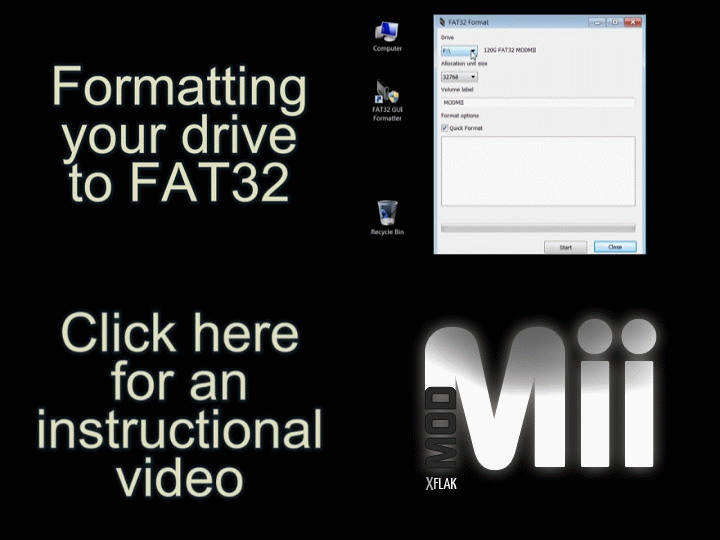
- Carefully select the correct drive letter corresponding to your external hard drive.
- You may optionally uncheck the “Quick Format” box, then click “Start”.
- When completed it should display “Done”.
- If you get an error indicating the device is in use, try again after first closing all of your file explorer windows, even the ones that weren’t browsing the device.
- Click the “Close” button.
- Copy Files to the Hard Drive
-
-
-
-
- At this time you should copy the files ModMii downloaded to the root of your hard-drive\partition (or SD Card if your HDD is WBFS).
- The files should be saved here: C:\ModMii\COPY_TO_USB
• Your folder structure should look similar to this:
💾 SD Card or USB Drive
┗ 📁apps
┣ 📁AppName1
┣ 📄boot.dol
┣ 📄meta.xml
┗ 📄icon.png
┣ (All other Wii apps should be here too)• Your folder structure should not look like this:
💾 SD Card or USB Drive
┗ ⛔📁COPY_TO_SD
┗ ⛔📁COPY_TO_USB
- At this time you should copy the files ModMii downloaded to the root of your hard-drive\partition (or SD Card if your HDD is WBFS).
-
When finished copying, you can proceed with the optional steps below or safely remove the hard drive from your computer and plug it into USB port0 on your console to start playing!
-
-
- Manage Game backups (optional)
-
-
-
- Launch the below tools from shortcuts on your Start Menu or Desktop.
-
-
Wii Backup Manager
Wii Backup Manager (WBM) is a Windows program to help transfer Wii games to and from hard drives and SD cards.
It can also download game covers, list your games, identify what games are missing between devices, and more.
-
-
-
- You can use this program to manage/transfer your backup copies of Wii Games (.WBFS/.ISO/.CISO).
- It is very simple to use, but a detailed tutorial on using Wii Backup Manager can be found here.
- Wii Game Directory Structure:
- Below is a single WBFS example, and a split WBFS example. A WBFS file needs to be split if it is over 4GB and your storage device is formatted as FAT32. During transfer operations WBM can automatically split games and set up the directory structure for you.💾 SD Card or USB Drive
┗ 📂wbfs
┣ 📂GameName [GameID]
┃ ┗ 📜GameID.wbfs (for non-split titles)
┗ 📂GameName [GameID]
┣ 📜GameID.wbfs
┗ 📜GameID.wbf1
- Below is a single WBFS example, and a split WBFS example. A WBFS file needs to be split if it is over 4GB and your storage device is formatted as FAT32. During transfer operations WBM can automatically split games and set up the directory structure for you.💾 SD Card or USB Drive
-
-
GameCube Backup Manager
GameCube Backup Manager (GCBM) is a Windows program to help transfer GameCube games to and from hard drives and SD cards.
The interface is very similar to the popular Wii Backup Manager program making it easy to use.
-
-
-
- You can use this program to manage/transfer your backup copies of GameCube Games (.ISO/.CISO/.GCM and extracted FST format).
- More detailed usage information on GameCube Backup Manager can be found here.
- Gamecube (Nintendont) Game Directory Structure:
- Below is a single disc game example, and 2-disc game example. Subdirectories are optional for 1-disc games in ISO/GCM and CISO format. During transfer operations GCBM can automatically and correctly set up the directory structure for you.💾 SD Card or USB Drive
┗ 📂games
┣ 📂GameName [GameID]
┃ ┗ 📜game.ciso (for single disc games)
┗ 📂GameName [GameID]
┣ 📜game.iso
┗ 📜disc2.iso
- Below is a single disc game example, and 2-disc game example. Subdirectories are optional for 1-disc games in ISO/GCM and CISO format. During transfer operations GCBM can automatically and correctly set up the directory structure for you.💾 SD Card or USB Drive
-
-
NKit Processing App
NKit is a Nintendo ToolKit that can Recover and Preserve Wii and GameCube disc images.
-
-
-
- Practically speaking you will only need this app if you encounter an “NKit.iso” or “NKit.gcz” game backup, which are not supported by WBM or GCBM.
- Usually these files have NKit in their names, but if WBM or GCBM cannot handle a backup it may be an unlabelled NKit backup.
- How to use the NKit Processing App to convert NKit backups to ISO
- Drag and drop source file(s) onto the NKit Processing App window.
- Select “Convert to ISO” Mode.
- Click “Process”.
- When finished, the converted game will be saved to: ..\NKit\Processed\Wii_MatchFail\
- Click here for a short video tutorial.
- After converting from NKit to ISO, backups can be handled by WBM and GCBM like normal.
- Practically speaking you will only need this app if you encounter an “NKit.iso” or “NKit.gcz” game backup, which are not supported by WBM or GCBM.
-
-
How to Backup Original Discs
Ripping original Wii discs cannot be done on a computer without one of the rare disc drives that are capable of doing so (most are LG branded).
-
-
-
- To copy Wii Discs, launch USB-Loader GX and insert the disc into your Wii, if you’re not prompted to copy\install the game you can press + to start making a backup.
- The WiiU is unable to read or copy GameCube Discs.
- Warning: Using your console to rip games to NTFS is very unstable, it is highly recommended to rip games to a FAT32 or WBFS formatted HDD, then transfer them to your NTFS drive using a computer. Recall that GameCube games cannot be played when saved to NTFS devices.
-
-
- Configure/Customize Your USB-Loader (optional)
-
-
-
- Start your preferred USB-Loader from the HBC, or a forwarder channel, or set Priiloader to autoboot it at startup.
- From there it’s pretty intuitive, browse and adjust any settings to your liking, download covers, set Private Server to Wiimmfi to re-enable online multiplayer, disable the blurry deflicker filter, etc.
- You can customize the look\theme of your USB-Loader or HBC following the steps from here.
- If you have questions about getting started with USB-Loader GX click here.
- Start your preferred USB-Loader from the HBC, or a forwarder channel, or set Priiloader to autoboot it at startup.
-
-
-
- You’re all set! Enjoy your modded console and I’d love it if you’d consider buying me a coffee!
- ModMii has already saved the WiiU Disc Dumper (wudd) and WUP Installer GX2 apps to your SD Card to support backing up WiiU discs. See this page for a tutorial on Dumping and Installing WiiU Discs.
- Access the Aroma plugin menu by pressing L + Down + SELECT (-) on the WiiU GamePad. The plugin menu can be used to configure plugins like Inkay (Pretendo), Bloopair, etc.
- Optionally enable the plugin to “Avoid ‘Format’ dialog on Wii U Menu (UStealth)” to skip the ‘Format’ prompt when launching the WiiU Menu with a non-WiiU-formatted external drive (e.g. FAT32 formatted drive for vWii).
- Note the Screenshot Plugin’s default setting to take screenshots is the gamepad’s TV button.
- Optionally hide WiiU homebrew from the WiiU Menu by launching the Aroma plugin menu, selecting the “Homebrew On Wii U Menu Plugin” and choosing “Hide all homebrew”.
- Optionally remove unnecessary files using ModMii’s “File Checkup” feature to prevent amateurs from using potentially dangerous apps.
- Periodically check for updates to your apps by using ModMii’s “File Checkup” feature. It will scan your device for available updates to ModMii’s auto-updating apps.
- Download the latest Homebrew apps and plugins.
- Download apps or PC tools from ModMii Classic’s Download Pages.
- Grab the WiiU Homebrew App Store from ModMii or the provided link to easily download many other popular apps right from your WiiU!
- Check out UTag: a customizable and dynamic gamertag to automatically update your Discord status with what you’ve been playing on your WiiU.
- At any point you can run SysCheck on your vWii to get a sysCheck.csv log of your installed softmods; in the future you can check if any of your vWii mods are outdated by opening your log with the latest version of ModMii.
- Download the latest Wii Homebrew apps to your SD Card or FAT32 USB Hard Drive so they can be launched via the HBC or forwarder channels.
- Download some Wii related PC tools or Just for Fun Wii apps like emulators or cheat codes from ModMii Classic’s Download Pages.
- Grab the Homebrew Browser or the Open Shop Channel for Windows from ModMii or the provided links to easily download many other popular apps right from your vWii or PC!
- Some other great libraries of Homebrew applications can be found at wiibrew.org, wiidatabase.de, oscwii.org and of course gbatemp.
- To manually “install” apps, download your homebrew and you should find a boot.dol (or boot.elf) file and possibly an icon.png and meta.xml.
- For the HBC to read your SD/USB correctly, your card must be structured SD+USB:/apps/application name/boot.dol\elf
- Some apps require a meta.xml be saved in the same place as the boot.dol\elf to work properly (icon.png is always optional).
- If you have a dol or elf file not named “boot”, rename it boot.dol\elf, otherwise it will not be recognized by the HBC (not required if using Priiloader to install a file).
- Check out some of my custom Wii Forwarder Channels to launch your favourite Wii homebrew straight from the vWii System Menu. Note that some channels may not yet be updated for vWii; simply open them using ModMii to edit the NandLoader to make them vWii compatible.
- Install some WiiU to vWii Forwarder Channels to launch your favourite Wii homebrew straight from the WiiU System Menu.
- Get a new theme for your vWii Menu! Confirm you have Priiloader installed before installing themes, then open mym themes\files using ModMii or ThemeMii Mod to convert them to csm files for your specific system menu version. Or check out the huge library of themes available at www.wiithemer.org, a website that also converts MYMs to CSMs for you on the fly. CSM files can then be installed to your Wii using csm-installer. ThemeMii Mod and csm-installer are both available on ModMii Classic’s Download Pages.
- “Expand” your vWii’s internal memory for more WiiWare and Virtual Console games by having it load the System Menu from external storage instead. Use ModMii’s Emulated NAND builder to get started.
- You can also use your vWii’s nand.bin or slccmpt.bin backup as an Emulated NAND. To extract the files from a nand.bin or slccmpt.bin to use as an Emulated NAND, simply open the file using ModMii. If ModMii prompts you to share keys to repair the nand provide it with your keys.bin or opt.bin backup.
- Alternatively, you can dump your vWii’s NAND to use as an Emulated NAND using USB Loader GX’s features menu.
- Install Fakemote to an unused IOS slot like 247 to add support for DS3 and DS4 controllers. This can also be done using ModMii Classic’s Advanced Downloads Menu by choosing the latest FM (Fakemote) version of d2x in ModMii’s options.
- Check out some Crazy Intro Videos to customize how your vWii starts up (SD Card required).
- Bring back WiiConnect24 to your vWii! The WiiLink Patcher restores functionality to Wii Mail and various Nintendo Channels such as Forecast, News, Everybody Votes, Nintendo, Check Mii Out, and more! You can get this tool from from ModMii Classic’s Download Page 5.
- Check out RiiTag\LinkTag: a customizable and dynamic gamertag to automatically update your Discord status with what you’ve been playing on your vWii.
- System Channel Restorer from ModMii Classic’s Download Page 2 can be used to re-install missing/removed system apps, e.g. Mii Channel, Photo Channel, EULA, etc. However, these three examples in particular will have already been installed as part of this guide.
- csm-installer and ww-43db-patcher from ModMii Classic’s Download Page 2 can be used to patch the WiiWare 4:3 aspect ratio database (43DB) to enable a 16:9 aspect ratio in Everybody Votes Channel and Check Mii Out Channels. However, if you installed any vWii theme built using ModMii (even the Default theme) this patch has already been applied.