
PS4 firmware up to 14.00 hacked by just visiting a single webpage – Full setup video
5th November 2026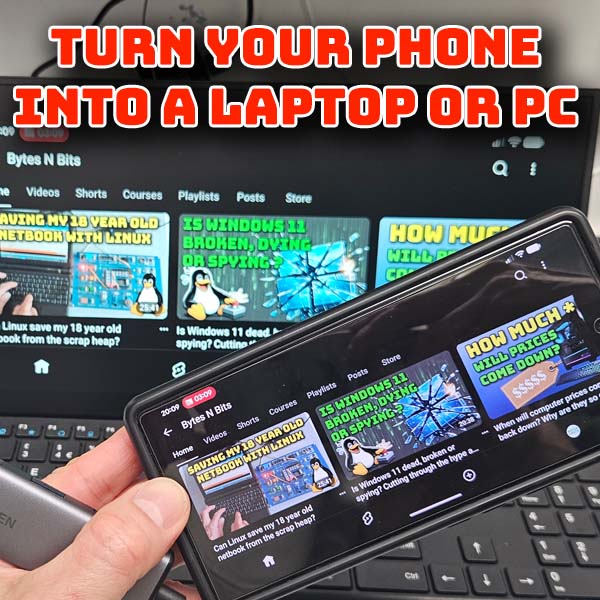
Turn your phone into a laptop or PC – Using a USBC dock to get HDMI and USB ports
For many of the projects on this channel I often get asked if you can use a phone instead of a laptop or PC. The answer is often yes. But it does need a little bit of setup to get it working smoothly.
So in this video I’ll show you how to make a docking station for your phone or tablet so that you can simply plug it in and instantly have a pseudo laptop.
So let’s get this set up.
Parts You Need
The parts you’ll need for this project will vary depending on your phone’s capabilities. For each function I’ll start with a modern phone and then work down to older devices to show you how to connect those as well.
We want to end up with a full sized screen, a proper keyboard and mouse, and the ability to save files to a USB thumb drive or SSD so you can share files and build installation disks.
So you’ll need an HDMI compatible display. Ideally this will also have built in speakers though your phone will use its internal speakers if necessary. I’ll be using this wireless keyboard and mouse that runs from a USB dongle so that I can show you a wired USB connection, but a Bluetooth setup like this keyboard here will work just as well. For the external file storage you can use a standard USB stick or an SSD with a USB to SATA converter. The drive is best formatted as an exFAT drive so that it will work with both the phone and your other computers.
Phones only tend to have a single USB port to connect to the rest of the world. This performs a whole range of functions. It may have the ability to output a native HDMI video signal. It can usually act as a headphone connection. Ans of course it’s a general purpose USB data connection port.
We’re going to need to plug a range of devices into this single USB port so we’ll need a USB dock. These are devices that take your single USB port and then split it up into a number of different functions, each with their own dedicated connector.
I’ll be using this neat little device from Antank. It’s their S6 Pocket Hub which gives you a really small but full feature USB C dock. It’s designed to be portable, it does fit easily in your pocket, and is primarily aimed at providing a docking function for handheld gaming systems such as my Nintendo Switch or any of the handheld PC systems. But it is simply a standard USB C expander that will work with any compatible USB C output, including our phones and tablets.
One of the great things about this model, and a feature I would strongly recommend on the dock you buy, is that is has a full power charging current passthrough. This means that you can connect the dock to your wall charger and it will not only split out the phone’s connections, but also provide a full 90W of charging current while you use it. This power supply also works for any handheld consoles you connect to it.
The ports available on the S6 are the standard ones you’re going to get with any of these docking devices. We’ve got a full sized HDMI port. This one is capable of up to 8K at 60Hz. Do make sure the port you buy covers the resolution you want to use. It also has 2 USB A sized USB 2.0 ports to connect our devices and connects to your phone over a USB C 3.1Gen2 port for high speed data transfer.
Again make sure you look at the specifications on your dock to make sure it has the ports and functions you need. You can get docks that provide SD card ports, USB3 ports and headphone sockets.
One nice feature this device has is that is has a built in display to show you what’s connected to each port. This is very useful to help you see that your display and power supply have connected correctly and that the signals form the phone are being split out correctly.
So that’s the main set of parts you need. There is one more item you might need but we’ll look at that when we discuss older phones.
Antank Doc – https://antank.net/products/s6-hub?ref=nmfhulti
USBC Docks – https://link.amazon/B01lazsnl
Wireless keyboard/mouse – https://link.amazon/B04Uzys0a
DisplayLink adapters – https://link.amazon/B060QzzTX
Portable monitors – https://shop.uperfect.com/4pFxvs5
Use these codes at checkout
Bytes30, $30off for order amount above $150
Bytes40, $40off for order mount above $200
Connecting It Together
So let’s start with a modern phone as these are going to be the easiest. Most modern phones embed an HDMI output into their USBC port. You will need to check the specifications for your phone to make sure it has.
If it has all we need to do is to plug our dock into the phone, then plug in our USB keyboard and mouse and then connect the monitor to the dock HDMI port.
You should now have a fully working laptop.
As you can see with my Samsung phone it recognises that it’s in docking mode and switches to the Samsung desktop to give an even better laptop experience. Some phones will do this, some will just mirror the phone screen to the monitor.
So that’s the easy one out of the way.
If your phone doesn’t have an HDMI output we’ll need some other way to get the video signal to the monitor. For this I’ll use my Google Pixel 6.
The first way is to use a streaming device like this Google Chromecast or an Amazon Fire TV stick. These will set you back around £30 but you can also pick then up second hand for much less. Both of these allow you to connect your phone and mirror your screen to the monitor. On my Chromecast device I need to make sure that I’m connected to the same WiFi network as my phone. I can then go to the cast settings on my phone and it should automatically find the Chromecast device and allow me to cast to it. And I now have my screen mirrored on the monitor. As with the new phone the USB keyboard and mouse are automatically detected and I can use those to control my phone. In this mode you do need to hold or mount your phone in landscape mode so that you get best use of the screen.
Casting devices do mean that you need to be connected to a WiFi network and they can also give slightly poorer screen displays depending on your phone and WiFi connection. To hardwire an older phone to the monitor requires something called a DisplayLink adapter. DisplayLink is a standard that allows you to drive an HDMI signal over a standard USB connection. You first need to install a DisplayLink driver on your device. Android phones work great with this. For Apple you need to make sure that you can get a driver app for your model.
The DisplayLink adapter itself will set you back upwards of £50 new. But again there are second hand models available as this is now an older technology. I picked up mine from CEX in the UK for £25. It plugs into the USB port on the dock and your phone should automatically detect it and offer to mirror your screen. Again you should now have your phone display on the monitor.
Using Your phone as a Laptop
So whatever device you’re using you should now have a working dock that allows you to simply plug into your phone and have a fully working laptop style system.
But what can you do with it now?
Nothing we’ve done so far has changed the way the phone works. All the apps you’re used to using will work. Some may detect the new setup and give you a more laptop style experience but most will simply allow you to use the mouse and keyboard in place of the touch screen and onscreen keypad.
This is particularly useful for any sort of office style work where a proper keyboard comes into its own, or any work that involves more precise cursor placement like photo retouching and video editing where the mouse takes over.
But from our retro gaming and modding perspective one of the great additional features is access to USB storage drives.
With our dock we can attach USB thumb drives to the phone. This one is preformatted to FAT32 so I can use it to update a PlayStation 3. In my phone’s files app I can navigate to the USB drive and then create the folder structure needed for this task.
The files I need to use are stored on a website so I can download those into my phoe’s download area. Again if I used the files app I can locate the downloaded file and copy it over to the correct folder in the USB drive. All that’s left is to rename the file and you’ve got a USB update drive ready for your console.
Conclusion
So that’s using a USB dock to expand the capabilities of your phone and allowing you to use it as a laptop.
Is it as good as a laptop?
I’d say that for some tasks yes! Anything where you need to type becomes a breeze. Using general on screen controls becomes much more accurate with the mouse. If you need a basic office style laptop then this solution is a great and cheap way to go. As we’ve seen you get full access to USB drives for data transfer and can use large SSD drives to greatly expand the storage space on your device.
Obviously you’ll be running a mobile operating system and using the apps from that mobile platform but many of these apps will give you the ability to perform almost all of the tasks you’d do on something like a Windows laptop. For the apps you can’t, well just watch another BytesNBits video instead.