
Play retro console games on your Nintendo Switch with RetroArch
5th April 2026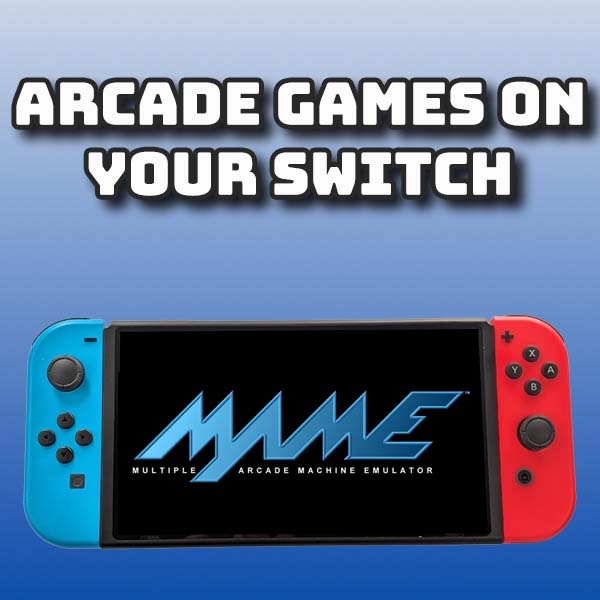
Play arcade games on your Nintendo Switch – Easy Mame install and setup
A modded Nintendo Switch is a great retro gaming console. You can play 10s of thousands of games from a whole range of consoles from the 80s 8 bit machines right up to the 3DS and GameCube. But in this video I’m going to show you how to play all the original arcade games using the MAME emulator.
So let’s get that installed and set up.
Mame
For this project we’ll be using a homebrew app called Mame-Nx. This is a dedicated port of the Mame 0.72 release onto the Switch hardware.
It is possible to use the cores in RetroArch but I found that the game setup and core allocation in RetroArch on the Switch doesn’t work as well as I’d like. You can play all the games, but launching them and getting them into playlists was a bit awkward. Mame-Nx gets rid off all that hassle.
So first off we need to install Mame-Nx.
The easiest way to install the app is to use the Homebrew store. You’ll find it in the emulators section so just download it from there.
If you’re not using the store app you’ll need to head over to this GitHub repo
https://github.com/lantus/mame-nx
Go to the releases section and download the latest version. This will come down as a zip file, so just extract the archive to get to the files we need.
You should have a mame.nro file which is the actual homebrew app but we need to package this up before putting it onto our console.
First make a MAME-NX folder, all upper case and then drag your .nro file inside that. Then open up the folder and create a roms folder inside the MAME-NX folder. This is where our games will go.
You now need to copy this whole MAME-NX folder over to the switch folder on your SD card.
That’s Mame installed.
Games
Now we need some games.
The best option is to download a full non-merged romset and then pick out the games you want from there.
Archive.org is a great place to look. Just search for “mame non merged”, and then try to find a 0.78 or 2003-Plus set.
https://archive.org/details/mame-2003-plus-reference-set
Mame-Nx is based on the 0.72 version of Mame so ideally you need to get hold of a fully non merged 0.72 rom set. I’ve tested it with a 0.78 or 2003 Plus rom set, which is much easier to find, and that does seem to work well with all the games I’ve tested.
If you are really stuck then do have a look at my project page for this video where I can give you a bit more guidance.
Once you’ve got the rom files all you need to do is copy them over to the roms folder in the MAME-NX folder that we created on your console’s SD card.
With that in place we’re ready to play!
Playing Arcade Games
On your console make sure you launch your homebrew menu in full memory mode. Do this by holding down the right shoulder button while you open a game. Just keep it held down until you see the menu appear. Running Mame in applet mode won’t work as well.
Then simply open up the Mame-Nx app and you should get to this screen.
On the left you’ve got the main menu, and on the right you should have a list of your games. To navigate use the left analogue stick to move the selection on the left menu and the d pad buttons to move the game selection.
To start a game just select it and press the A button. This will start up the emulator and run the game.
You may find that some games don’t run. If that happens look very closely at the boot messages that flicker past. You should be able to just about make out if there are a number of NOT FOUND messages. This indicates that the rom file you are trying to run is missing some parts. Mame roms don’t always have all the files they need in one rom zip archive. Quite often they need other rom files to be present. This can get quite complicated so I did make a video about how Mame roms are organised, so do please have a look at that. The best way around it is to get hold of a fully non merged romset. These have game files with all the required files in the one place.
So once you’ve got a game running there’s only a couple of buttons you need to know.
The minus button will put a coin in the arcade cabinet. The plus button acts as the game start button. After that the games should play as normal with the main gamepad controls.
If you find a game isn’t using the controls correctly you can get to the main Mame menu by pressing both analogue sticks for the L3 and R3 buttons. This allows you to remap controls for all games using the general options, or just for this one game.
Once you’ve finished press the plus and minus together to get back to the game selection menu.
Have Fun
So that’s Mame fully set up on your Nintendo Switch. You now have access to every classic arcade game ever released so dive in and have some great retro gaming fun!