
Fake SD Cards and USB drives – What they are and how to spot them
26th April 2026
Upgrade Your Modded Switch SD Card – more games, Android & Linux partitions
4th May 2026
SD cards explained – what do the numbers mean – what’s the best one for you?
We all use Secure Digital or SD cards for our phones, tablets, computers and games consoles. They are a great way to add loads of extra storage. But when you come to buy one there are literally hundreds of options to choose from. So in this video I’ll walk you through the different types of cards and show what the numbers printed on them mean so you can work out which cards are best for you.
In this video I’ll be assuming we’re using real SD cards. I did make a video on fake cards where unscrupulous manufacturers release really cheap cards that only pretend to work so do have a loom at that as well so you can avoid that mistake.
Physical Size
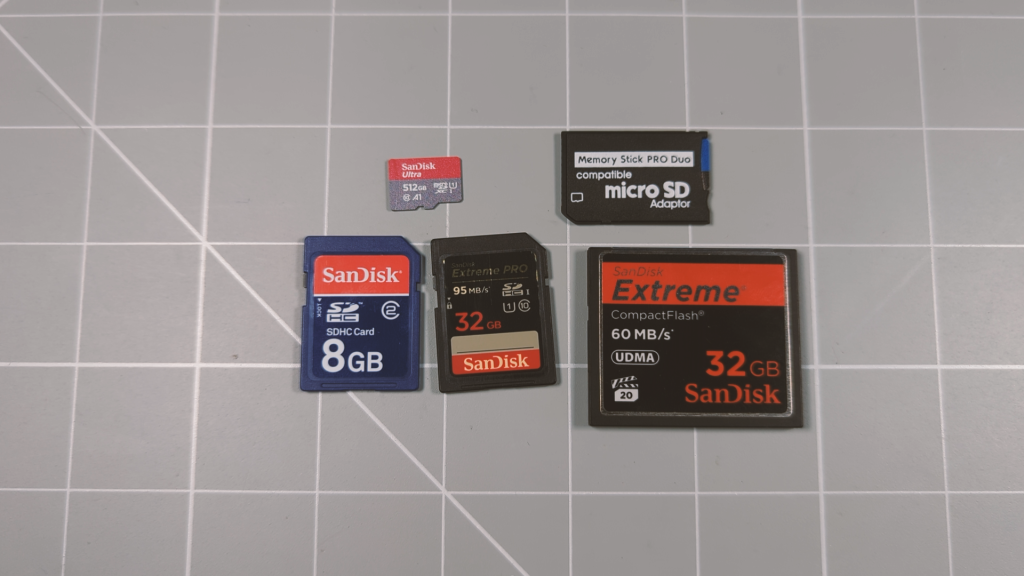
To start with there are a number of different size formats. Quite simply you need the correct sized card to fit into your device.
For most of us micro SD cards are the best choice. These were originally called TF cards but that was changed the Secure Digital by the joint manufacturers quite some time ago. These are the smallest form factor but they usually come with an adapter that turns them into the older, full sized SD card format. A micro SD card in an adapter is no different from buying a full sized card so this option allows you to use your device across all your gadgets.
Having said that a lot of cameras still use a full sized SD card slot. Partly this is due to ease of use. SD cards are bigger and easier to handle. They are more securely held inside the camera and less prone to knocks and bumps. But the larger size also means that they handle heat better than the smaller micro SD cards. When you are continually writing to these cards e.g during video shoots they get hot. As they get too hot their transfer speed has to be decreased to stop them from overheating. Bigger cards can spread this heat out better and get rid of it allowing them to run faster for longer. So if your camera has the larger memory slot it can be better to go for a full sized SD card.
There was a middle sized mini SD card for a while but these are hard to find and not used in any modern devices.
You’ll also find other memory card formats. Some of the games consoles like the Sony PlayStation Portable used a custom format, but again you can get adapters to allow you to plug a micro SD card into these devices.
CFexpress cards are a completely different sort of device and not compatible with SD cards. Whereas SD cards use a hybrid serial/parallel way to talk to your computer, CFexpress cards use a PCIe connection, exactly the same as an SSD hard drive. This makes CFexpress cards much faster than even the best SD cards. They tend to be used in high end cameras and video recording devices reaching transfer rates of over 1000 MB/s compared to SD cards that max out at around 300 MB/s.
The Numbers
So now we know what size of card we want what do the numbers printed on them mean?
There are basically six values that describe the performance of a card.
- SD Type
- Storage Capacity
- Speed Class
- UHS Speed Class
- Video Speed Class
- Application Class
- Bus Interface
All SD cards will have most if not all of these printed on them. So let’s go through each find out what it means.
SD Type
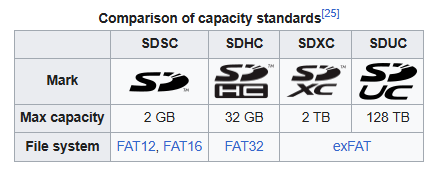
The SD Type refers to the maximum capacity for the card. Original SD cards allowed your device to access up to 2GB of data on the card. When this was upgraded to SD High Capacity or SDHC card size grew to 32GB. Modern SD eXtended or SDXC cards allow up to 2TB of storage. The very latest SD Ultra Capacity or SDUC cards allow up to 128TB of data space.
This size restriction is partly the way the card are built but also the disk formats that devices of that era were able to use. Very old devices only supported FAT16 formats. This is where the 2GB limit comes in. SDHC cards were built for FAT32, which is sort of the universal standard format that supports up to 2TB . But many older systems could only work with 32GB. Even today if you use Windows Explorer to format an SD card it will only allow you to use the FAT32 format up to 32GB. SDXC cards usually use exFAT or NTFS to work better with the larger disks and file sizes of modern computers.
It is important to get the right SD type for your device. Most recent phones, tablets, etc., or anything made after 2015 will almost certainly support SDXC. As of 2026 SDUC is still a very specialised format.
SDXC compatible devices can read all the older cards. SDHC compatible devices may be able to use larger SDXC cards if they are formatted to specific versions of FAT32, but generally they are restricted to the 32GB SDHC limit. SD compatible devices are best used with SD type cards although some can work with up to 4GB of data.
Storage Capacity
Next we get to the actual storage capacity of the card. As we’ve seen the type dictates the maximum storage space, but within those limits we can buy cards at whatever size we want. These are sold in the normal computing powers of two GB sizes, i.e. 8, 16,32,64,128 etc.
When you get a card it will be specified as e.g. 64GB but you may only have around 60GB of usable storage once it’s formatted. So don’t be disappointed if you get slightly less data storage than you paid for, that’s just the way these things work.
Speed Classes
We now come to the data transfer specifications.
There are three data write speed symbols that we can go through as one as they effectively replace each other.
The basic speed class which is shown as a number inside a C tells us what the minimum write speed is measured in MB/s. Most cards these days are classed as C10, or 10MB/s but there are older C2 and C6 versions. Again this is the minimum speed, your card may be capable of much faster transfer rates.
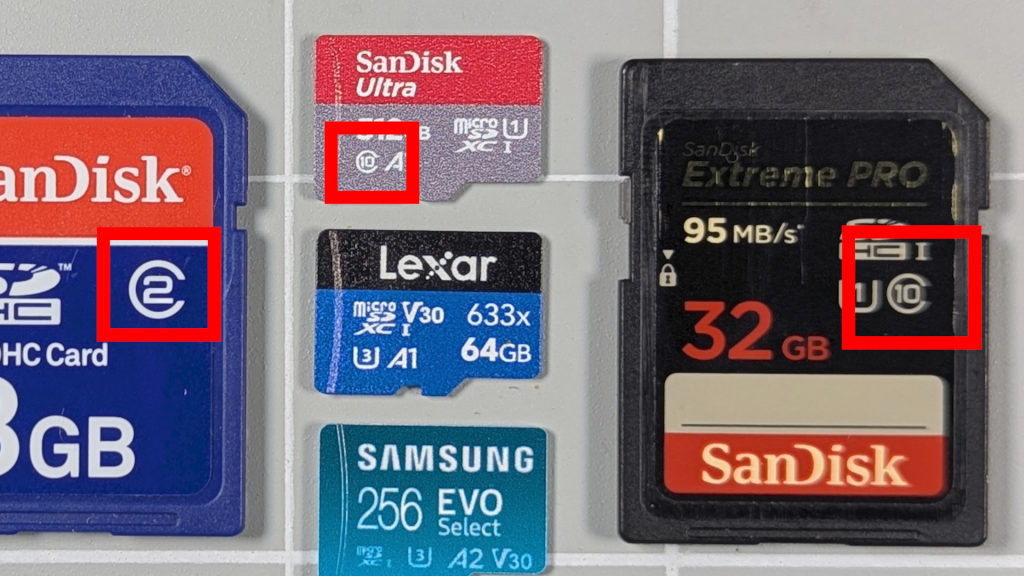
This C spec was superseded by the Ultra High Speed, or UHS, and Video Speed specifications. Both of these tell you what the minimum sustained write speed for the SD card is. This is most important for cameras and video equipment, basically anywhere where you need to transfer lots of data in big blocks. As a memory card is used it starts to get hotter. If you don’t have breaks between file writes it doesn’t get a chance to cool down. The memory controller inside the SD card monitors this temperature and will slow the card down to stop it overheating. On a computer a slower write speed just means that you have to wait longer for a file to transfer. In cameras you might miss a shot as one photo has to be saved before you can click the shutter for the next one. In video recording you might be limited to lower quality video as higher resolutions might not be able to save all the frames fast enough. This causes frame dropping which creates jumps and stutters in the video as sections are simply missing.
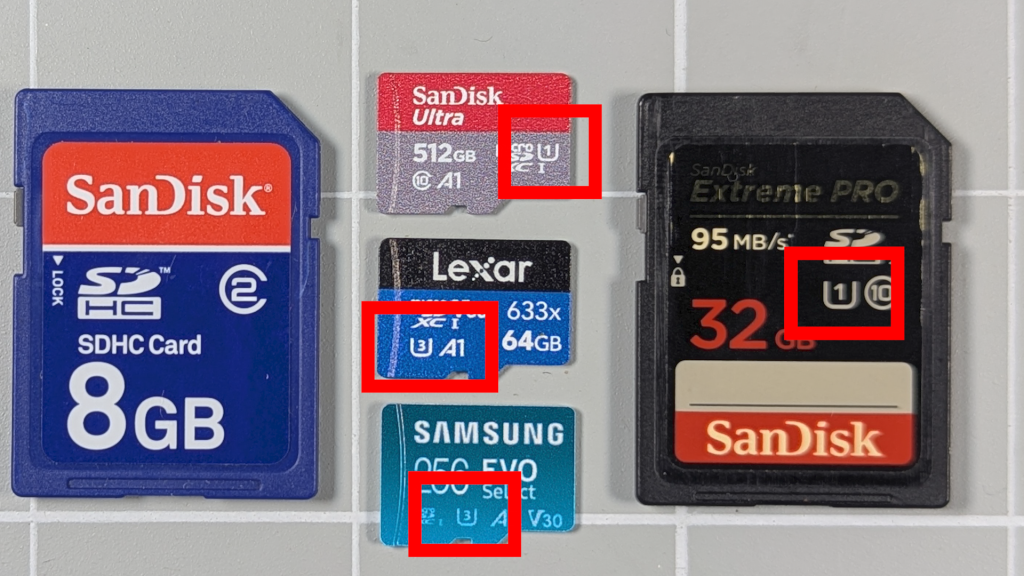
The Ultra High Speed or UHS speed class is a number sitting inside a U. U1 means a minimum sustained write speed of 10MB/s. U3 is 30MB/s.
The Video Speed spec is written as a V with a number beside it. V6 is a 6MB/s card. This is fine for low quality video. V10 (10MB/s), the same as U1, is deemed the minimum you need for full HD or 1080p video recording. V30, equivalent to U3, will be fine for 4K video. V60 will cope with 6K. And V90 (90MB/s) is needed for reliable 8K recording.
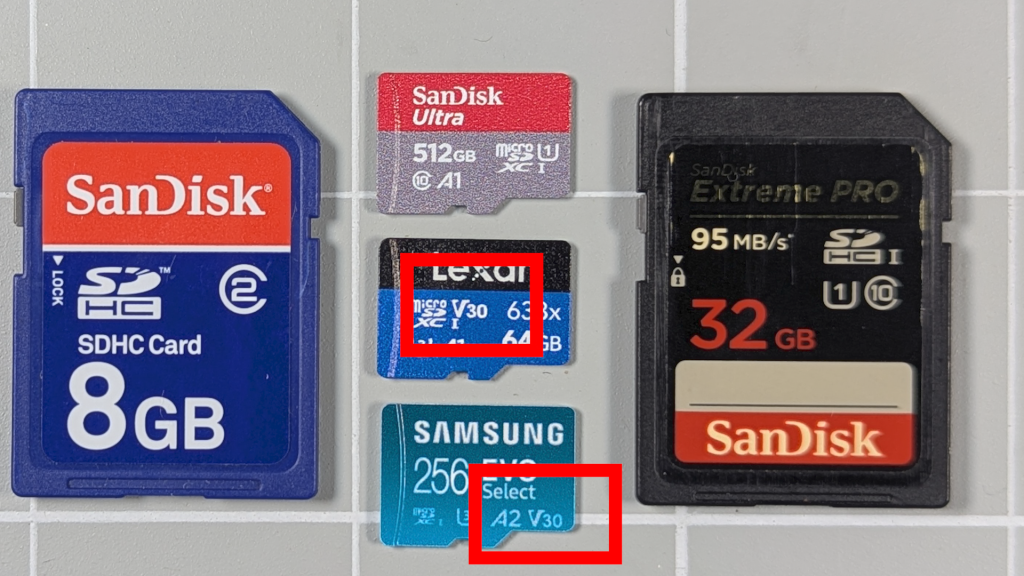
Again these are minimum sustained write speeds. Peak or maximum rates may be higher but will drop off during large file transfers.
Application Class
So far our speed specs have concentrated on sustained write speeds for moving large amounts of data to the card. But that doesn’t really help us understand how well the card works as a normal disk drive for our everyday application use where our device is usually storing multiple small files, reading them back, altering them, resaving them etc. Quite often the cards will be able to use their full speeds in these situations. This requires a newer speed rating, the Application speed. This tells us how many I/O Operations per Second (IOPS) the card can handle. This is a different way of measuring the performance rather than pure data transfer rate.
The spec is written as a capital A followed by either 1 or 2. An A1 card can perform 1500 read or 500 write IOPS. An A2 4000 read or 2000 write IOPS.
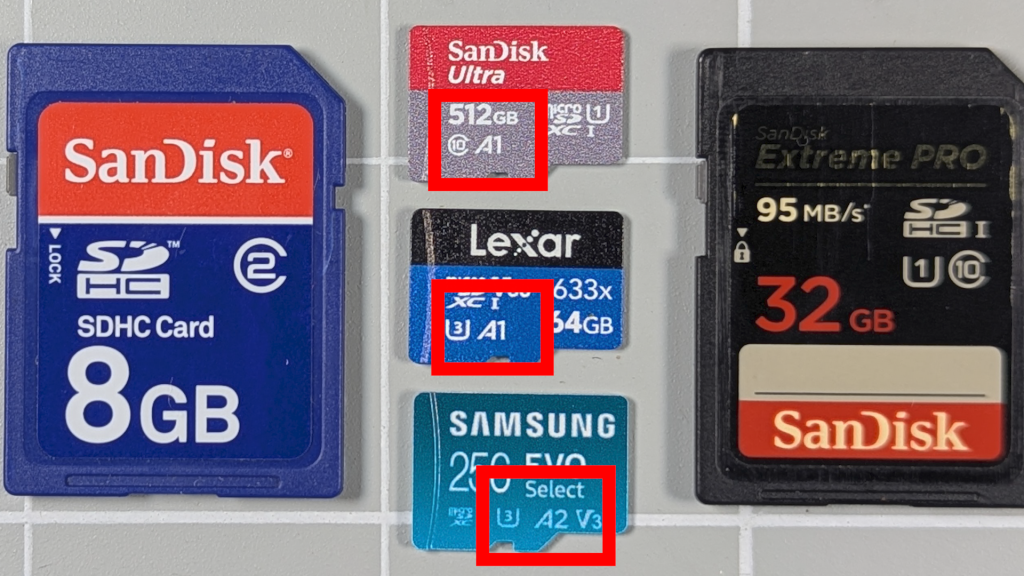
An A1 card is fine for everyday application use. If you’re a gamer or using intensive applications that makes lots of small read and write operations then an A2 class card will work better. Again this difference is dependent on your device supporting A2. A2 uses different software commands to get the higher performance. If your device doesn’t understand these it will just run the card at normal A1 speeds.
Just to make clear this is a different way of measuring card speed. The C, U and V speed classes are sustained data write speeds for moving bulk data. Cameras, video and data storage devices rely on this sort of speed. Running your phone apps from an SD card, using it as a hard drive in your Raspberry Pi or games console relay on lots of smaller reads and writes so the A class gives a better comparison.
In choosing a card try to get the best combination that suits your needs. For example buying an expensive V90 card with A1 class will probably perform slower with your phone apps than a V30 with A2.
Bus Interface
Finally we have the Bus Interface specification. This relates to the way in which the Sd card is connected to the device and tells us how fast the card is able to talk to your device. This differs from the speed specifications we’ve been looking at and is now a measure of how fast data can travel over the communications link.
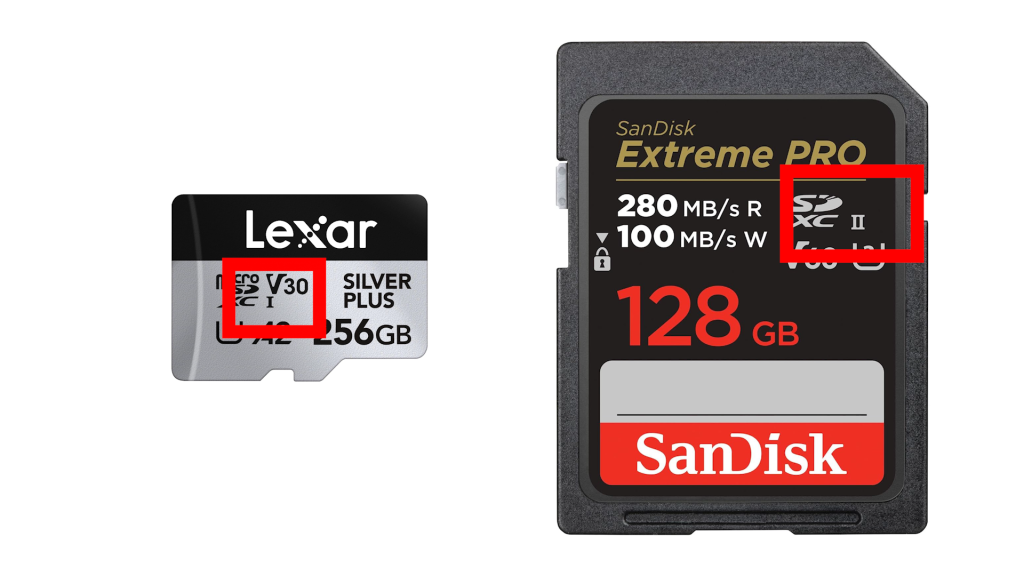
Really the markings for this start with the Ultra High Speed or UHS class devices. These will have a Roman numeral printed on the SD card for class I, II or III.
UHS-I SD cards use the standard SD card pins and can transfer data at up to 104MB/s. Pretty much any device can make use of these cards. Very old devices may not be able to reach these speeds but they will be able to use the cards.
UHS-II cards add an extra set of pins. If your device doesn’t have these pins it will default back to the UHS-I interface. So again these cards will work in most devices, but just not at their full speed of up to 312MB/s.
UHS-III uses the same extra pins as UHS-II but now can run at up to 624MB/s.
Again these speeds are maximum or peak transfer rates. The cards will probably not be able to sustain these speeds for long times. That’s were the C, U and V values come in. But the interface does allow the card to run much faster than those minimum speeds to get snappier performance in applications and other burst style operations.
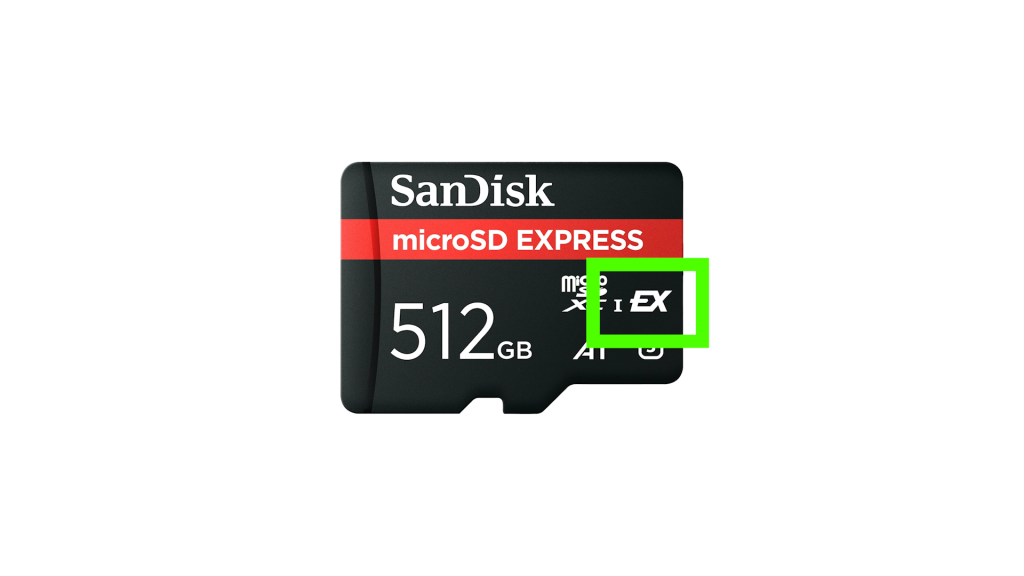
There is also a very new SD Express bus interface, marked with an EX symbol. This is backwards compatible with UHS-I, II and III. If it is plugged into an SD Express compatible device, such as the Nintendo Switch 2, it can hit speeds of around 1000MB/s. SD Express reassigns some of the extra pins in the UHS-II and III spec as PCIe data channels turning your SD card into an NVMe style SSD drive. Again your device has to be able to run the card using PCIe otherwise it will need to fall back to UHS.
Be careful when buying SD Express cards. They will have one of the UHS Roman numeral markings on them. This is the speed they fall back to when not in PCIe mode. This is not always the higher UHS speeds so you may be disappointed with their performance it your device can’t use the full SD Express interface.
Quality
So that’s all the numbers on the cards and what they mean.
On top of this you also have to consider the quality of the device. These SD cards contain memory ICs that do the actual data storage. One way of keeping the cost down is to use lower quality memory chips.
Each time you write to a memory location it causes wear and tear on the silicon transistors. Basically electrons get pushed through an insulation layer inside the transistor. Each time you do that the insulation layer gets weaker until it eventually stops being an insulation layer and the transistor fails. All SD card memory chips suffer from this wear, but lower quality memory ICs fail after a smaller number of write/erase operations.
Higher quality cards usually contain some hidden memory. As main memory locations fail they are replaced by the spare memory to keep the card running at full capacity.
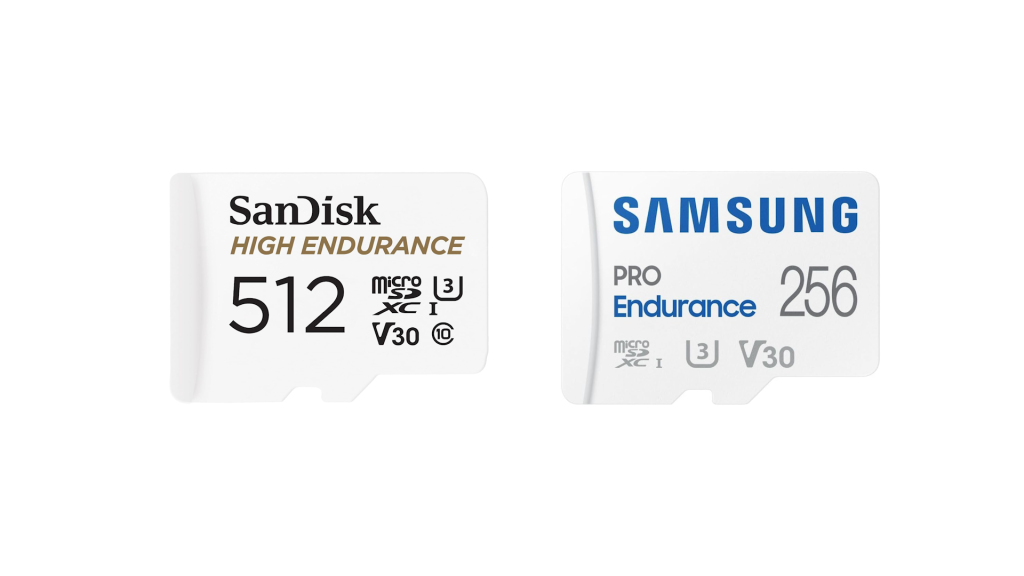
It can be hard to gauge the quality of a card just from just its listing online, but generally the better known brands will use better quality chips. Some cards may be labelled as High Endurance or Pro Enduance which should indicate top quality memory that’s designed to last constant reading and writing.
Cost can also be an indicator. Lower quality memory ICs are cheaper so the final card can be cheaper. But this is a bit of a hit and miss part of the buying process. Some cheaper manufacturers do use good quality devices but you’ll need to check the reviews to see if people are getting issues with them.
As a guide under normal operation, not in a dashcam or as a hard drive for your Raspberry PI, a good quality card will last for 5 years or more whereas a poor quality card may fail within one to two years.
If you are in a high usage case good quality cards will still last for a few years but low quality ICs may fail within a few months.
Conclusion
Hopefully this has given you some ideas on how to select your next SD card. Do have a look at what you want to use the card for and select the spec that best matches that for the price you want to pay.
Make sure the phone, or computer or whatever you’re plugging the card into can support the specs you are paying for otherwise you’ll be paying for speed you can’t use.
My overall advice would be to stick to known brands if you need a reliable, long-lasting card.