
Best way to mod your Nintendo DS – DSpico flash cart – full setup and emulation
15th June 2026
Why are new computers so expensive?
4th August 2026
Can Linux save my 18 year old netbook from the scrap heap?
This is my EeePC 900 from 2008. I love its form factor but it’s nearly 20 years old, runs on a single core Intel Celeron processor and only has 2GB of RAM. By today’s standards it truly is a museum piece with almost no processing power.
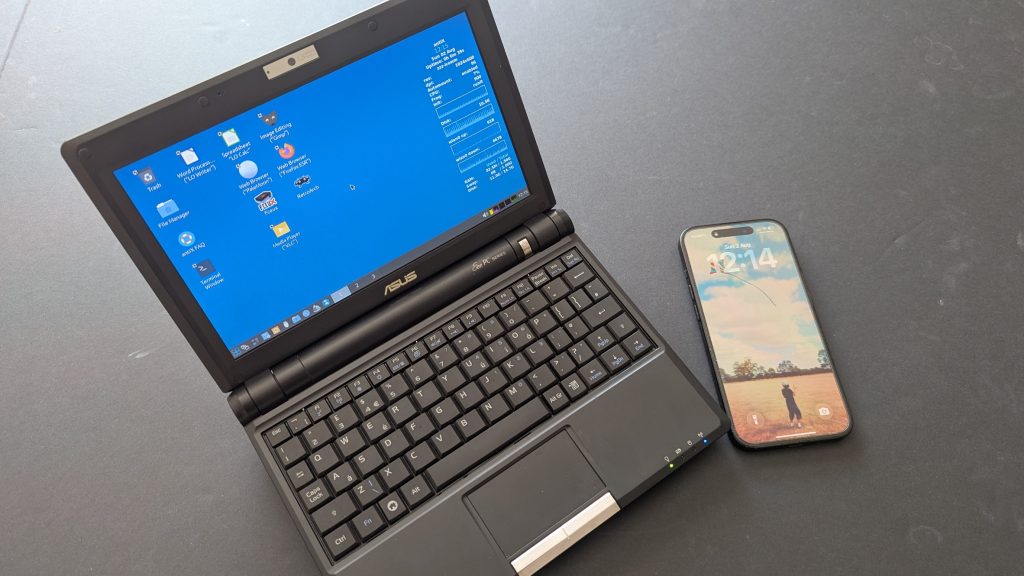
Millions of old laptops and PCs end up decaying in attics or buried in landfills, simply because modern operating systems like Windows and MacOS render them obsolete. They still work but are just not powerful enough to run the code.
So could Linux turn this netbook into a computer that I could actually use as a serious everyday PC?
Let’s find out!
Why Linux and not old Windows?
When I bought the netbook it came with Windows XP. You might think why not install that. It’s a possibility but it would leave me running out of date, vulnerable software that would work, but not let me fully connect with the modern world. I need up to date software to make the computer usable.
This is where Linux comes to the rescue.
Linux is an open source system meaning that it isn’t owned or controlled by one organisation. Anyone can take the code and tinker with it to make it do things that Microsoft or Apple would never bother to look at. Thousands of developers have put endless hours of effort into making versions of Linux that are so well stripped down and optimised that they can run on very low powered machines.
These light distros are ideal for older hardware and many contain the driver code needed for obsolete devices so that your old laptop or PC can operate in the modern world.
So let’s see if we can get my EeePC running again.
How bad is the EeePC?
First off, we do need to know a little bit about the laptop so we can choose the right Linux version.
The EeePC runs on an Intel Celeron M processor. This is a single core, 32 bit processor. It also had 1GB of RAM although I’ve upgraded mine to 2GB. So the number of cores, bit size and RAM are the specs we need to be able to choose our Linux distro.
Comparing this to a modern laptop gives an astonishing result.
New CPUs are up to 30,000% faster. GPUs up to 1,000,000% faster. And modern NVMe drives up to 25,000% faster. For comparison my EeePC goes at a steady walking pace. A modern laptop is a jet fighter travelling at Mach 2.
So Linux has got a heck of a lot of work to do to get this museum piece operational. I’d have to admit it’s not looking good!
Which Linux to use?
With our specs we now need to find a Linux version that will run on our hardware.
The mainstream Linux versions tend to be designed for modern hardware so those are not going to work. With a little bit of online research we can come up with a list of possible candidates. All of these are light, highly optimised operating systems.
This again is where Linux has a big advantage. Live drive versions.
Most Linux distros can run from a USB drive so that you can try them out before committing to a full installation. So we only need to download the disk images, flash them to a USB stick and plug it into the EeePC to see if they work.
For this video I’m going to be using AntiX. This is a very light weight Linux distro with fantastic support for old and very old hardware. We’ll boot up into a live USB disk image, make sure everything is working OK and if all is well install to the main hard drive.
AntiX
AntiX can be reached from this website, and as you can see it’s designed to work on a range of old hardware. The OS has a few variations depending on what type and age of computer you’re installing onto. So for my EeePC I’ll need the 32 bit version, and I’ll go with the Full install to get all the drivers in place and everything set up in one go. All we need to do is download this iso file to a computer and flash it to a USB drive or SD card.
Once we’ve got our boot disk it’s time to jump onto the EeePC.
Booting from USB
To get the drive to work you need to be able to boot your computer from USB. Usually there is a boot menu which you can access by pressing a key while the computer is powering on or you can go into the BIOS settings and set USB as the first boot device.
Time to see if everything is working!
Using AntiX
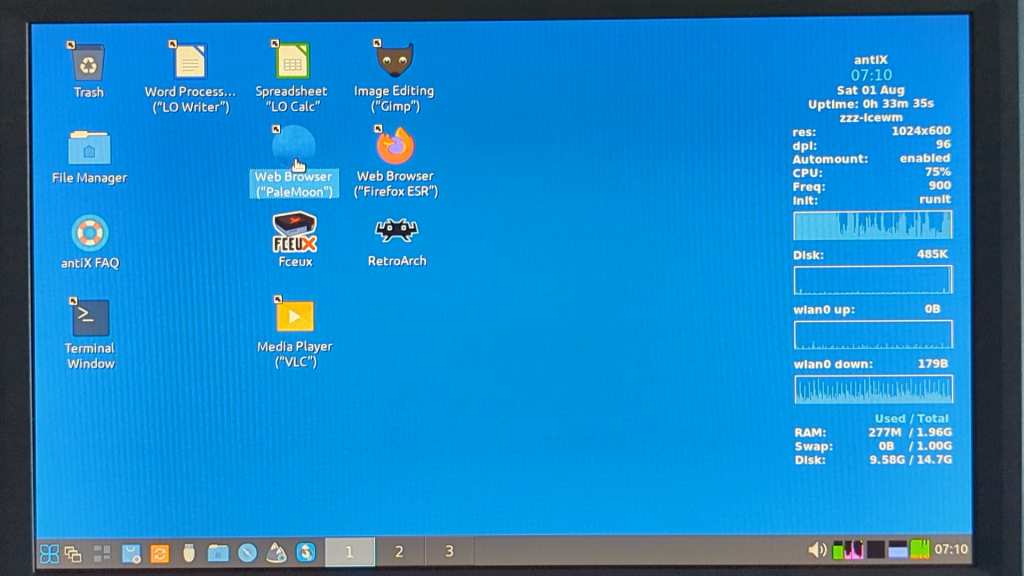
Right out of the box antiX has managed to identify all my hardware. The screen is working at native resolution, the internal WiFi adapter has been found and connected, the mousepad, keyboard and USB ports all work. So things are looking good.
The main interface feels snappy. Menus are opening up quickly and our handy system monitor display is showing the system loading as OK. We can also start up some of the included apps to see how well they work. The package comes with Libre Office pre installed and that works great for the standard word processing and spreadsheet sort of work.
So AntiX seems to be working great on this little laptop. If it hadn’t I could simply have tried other distros on their live USB drives until I found the one I wanted. Let’s get AntiX fully installed.
Installing to Hard Drive
This is a fairly simple process on most distros. AntiX has a single button that does all the work for you. Others may require you to partition the hard drive, copy some files and then click the install button.
Don’t forget of course to back up anything you need from the hard drive as it’s about to be wiped!
So once installed we can better see how good our new laptop is.
Office
We can start with some basic office tasks. As standard we’ve got Libre Office for word processing, spreadsheets etc. Libre Office is file compatible with Microsoft Office so a drop in replacement for most people’s work.
Start up time is OK. Once up and running everything is reasonably snappy. Typing, menus, formatting and everything I’d need to do my work is there. So office work gets a big tick.
Browser
Now let’s look at browsing. We’ll start with a simple text based site like Wikipedia using the default Firefox browser. Not a great experience, but it does work. Web browsing is one of the areas that very old PCs will struggle with. Modern websites require a lot of processing for image decoding, rendering, video processing, scaling etc. Usually you’ve got multiple cores and GPUs with built in decoding hardware, but on PC’s this old you might have a single processor core doing absolutely everything. Plus with only 1 or 2GB of memory the processor quickly runs out.
If we move on to try some streaming from YouTube. Well again the web page itself is really struggling to render and this is before we try to stream a video.
So modern web browsing is going to be a bit hit and miss.
Local Video Playback
But what about playing video files from a USB drive. 1080p MP4 files simply don’t load. The processor can’t cope. Even reducing video quality to 320p at a very low bit rate is a struggle for the old machine so video playback isn’t going to work.
Coding
I use my laptops for a lot of coding so let’s see if we can work with an Aurduino. I’ve installed the Arduino IDE and connected to my Elecrow starter pack so we can easily get some small devices up and running. Editing is fine. Again we’re basically using a word processor. Compilation is a bit slower than normal, but not unusable and the EeePC is fine communicating with the board.
So as a small coding terminal this works great.
Gaming
So what about gaming? Obviously any sort of mainstream gaming is totally off the cards. But what about retro gaming, one of my big favourites.
I’ve installed and set up RetroArch so we can play a range of consoles.
Trying out an 8 bit Atari title shows the limits of the PC. The game loads and is playable but at about a third the frame rate of the proper game. Again this is effectively unusable.
Conclusion
So overall I guess we’ve got the results we could have expected. Linux has done a great job of allowing this old netbook to run a modern operating system. But we can’t get away from the fact that the processing power, and multitasking capabilities of the CPU with integrated graphics just can’t cope with what’s expected for some modern applications.
For me the saving grace for my EeePC is that it can work well as an Arduino coding terminal and the small form factor does come into its own in this task. Other than that I think I’ve gone just a bit too far back in time for even Linux.
I hope you’ve enjoyed this as much as I have playing with my old netbook. If you like this sort of thing then please do click that like button and subscribe to the channel as I explore Linux on old hardware along with my normal coding, electronics, gaming and modding videos.