
Create online accounts on your modded Nintendo Switch with Linkalho
4th April 2026
Play arcade games on your Nintendo Switch – Easy Mame install and setup
6th April 2026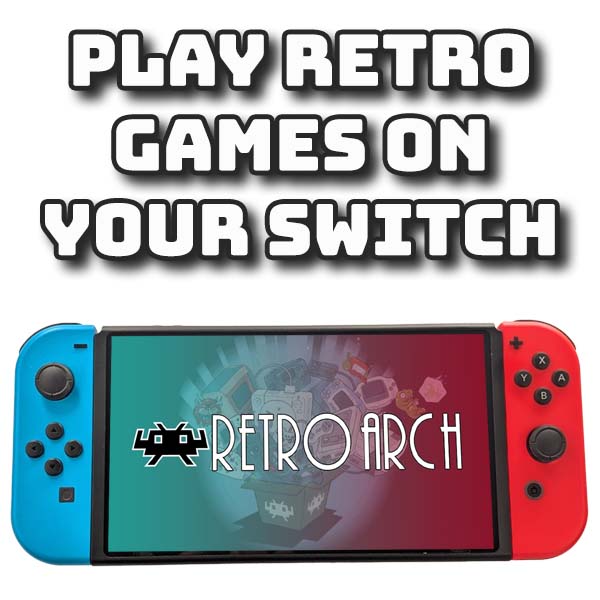
Play retro console games on your Nintendo Switch with RetroArch
The Nintendo Switch is a very versatile console to own, especially once you mod it. This opens you up to a whole range of homebrew applications that let you use the console as a handheld computer. Once you’ve got access to the computing power of the Switch you can turn it into a fantastic retro gaming machine.
Now Nintendo have always had a few retro gaming titles on their catalogue but they only let you play a very small number of games from a small set of consoles. In this video I’ll be showing you how to install RetroArch which will let you play pretty much every game from every retro console and home computer system.
So let’s get set up and turn your Switch into every console you ever wanted to own.
What You Need
So for this project you need a Switch that’s been jailbroken either using the RCM hack or with a modchip. If you haven’t yet modded your console then make sure to check out my modchip tutorial.
Other than that all you’ll need is a way to put some files onto your SD card. I’ll be connecting to my Switch over a USB cable, but you can simply take the SD card out of the console and plug it into your computer.
Software
On the software side we’ll need to get hold of the RetroArch homebrew application for the Switch. You can do this in a couple of ways.
If you head over to the RetroArch download page you’ll find the Switch downloads a few screens down the page.
Retroarch uses what are known as stable builds and nightly builds. The link on the Switch icon is the stable build which is fully tested, but can be a few months old. At the time I made this video I did try this but it didn’t work fully so I’m going to use the nightly build as that will be fully up to date. It may have some untested code, but generally it’s stable, and if the official download doesn’t work it’s the way to fix it.
So scroll down the page a bit more until you find the nightly build link. This will take you to the automated build tool packages. We then need to navigate to the Nintendo folder, then to the Switch folder and then into the lidnx folder. Inside here you’ll see a range of nightly build files. The bottom entry labelled RetroArch.7z is the one we need.
Just download the archive file to your computer and extract the files. This will give you a switch folder with the retroarch.nro file and a retroarch folder with all the Retroarch setup files. All you need to do is to copy everything in the archive to the root of your SD card.
This method will install Retroarch with all its cores pre downloaded. Cores are the software plugins Retroarch uses to emulate each retro gaming system. If you want a full setup use this method but it will take about 3GB of storage space for all the cores. The majority of these you’ll probably never use so if you want to save a bit of card space use the second method.
For this you’ll need access to the Switch Homebrew Store. This is an app you can download from this website. Again just copy the nro file to the switch folder on your SD card. This will install the Homebrew store which lets you browse online for homebrew apps which you cab then install with a simple click. So search for Retroarch and then install it.
This installation gives you the full Retroarch app, but with only a few system cores pre installed. You’ll be able to use the online updater to install other cores but you’ll only need to install the ones you want to use.
I’ll be using the full installation method so I have everything I need already installed.
Games Files
Once we’ve got Retroarch installed we’ll need some games files to play. Again this is where you’ll need to do a bit of searching on your own as most of the files you need contain copyrighted material. Needless to say please do make sure that you are authorised to download and use any files that you do find so that you don’t break any copyright laws in your region.
If you are having difficulty finding files don’t forget that I publish a project page for each video I make on my bytesnbits.co.uk website where I can give you a bit more help.
Once you’ve got some game files you simply need to copy them over to your SD card. You can put them anywhere you want, but I’d advise putting them in the retroarch folder to keep everything together. Just create a roms folder and then try to keep each game system files in its own sub folder. This will make it easier to install the files in a second.
BIOS Files
Finally you might also need some BIOS files. This depends on what retro consoles you want to play. Most of the early 8 and 16 bit consoles don’t need separate BIOS files. But the PlayStation consoles are probably the ones you’ll need to install.
The easiest way to do this is to find a RetroArch BIOS pack online. Again if you’re having problems finding these files have a look on my main project page.
To install the files into RetroArch you just need to copy them into the cores / system folder. You’ll find that in the retroarch folder, cores and system. Then copy your BIOS pack, or the individual BIOS files in here.
Setting Up RetroArch
So now we’ve got Retroarch installed we need to do a bit of setting up.
Please see video for setup.